

Instagram Not Working: What’s Going On and What to Do
If you opened the app and realized that Instagram is not working, you are not alone. Millions of users face the fact that the Instagram app stops loading, does not open the feed, or simply crashes every day. Let’s figure out what is happening with Instagram, why it is happening, and how to quickly solve the problem.

Why Instagram is not working
The first reason why Instagram isn’t working may not be related to your phone, but to restrictions imposed at the country or internet service provider level. In some regions, access to social networks is restricted or slowed down. This is a common reason why users notice that Instagram isn’t working properly or isn’t loading at all.
In this situation, using a VPN can help. The service encrypts traffic and allows you to connect to servers in other countries, bypassing blocks and regional restrictions.
What to do first:
- Connect to VPN for Instagram — a reliable solution for bypassing blocks.
- Check the app’s performance through a VPN. If Instagram opens, then the reason is your provider’s restrictions.
- If the problem persists, try changing the server or connection region
We recommend using Planet VPN — it’s a free and secure VPN service that’s perfect for working with Instagram.
It does not require registration, does not collect personal data, and offers unlimited traffic. With Planet VPN, you can:
- Open Instagram, even if it is blocked in your country;
- Increase your connection speed and stabilize access;
- Protect your personal information when connecting to public Wi-Fi networks;
- Safely use Instagram on any device — phone, tablet, or computer.
Additional benefits of Planet VPN:
- Over 60 servers worldwide;
- Support for Windows, macOS, Android, iOS, and Chrome, Firefox, and Opera browsers;
- Free version with no time restrictions.
If the app still won’t open even through Planet VPN, the problem may be on the service side — for example, a temporary Instagram outage or Instagram maintenance. In this case, you’ll have to wait until Meta fixes the problem.
Why is instagram not working
Sometimes users notice Instagram issues — photos don’t load, stories don’t open, and messages don’t send. The app may freeze when loading, display a blank screen, or simply not respond to actions. This may indicate temporary Instagram problems or scheduled Instagram maintenance, when Meta is updating, testing new features, or fixing internal errors.
Sometimes these glitches look different. For example:
- New posts do not load in the feed, even though the internet is working;
- When loading stories, the message “Try again later” appears;
- The ability to send Direct messages disappears;
- Posts lose quality and videos do not play.
Such Instagram issues often arise not because of the device, but because of server problems. When the system is overloaded or Instagram maintenance is underway, users around the world may temporarily lose access to some features.
How to Fix
Let’s skip the guesswork.
- Check if there is a widespread outage. Go to websites like Downdetector to see if there is an Instagram outage. If thousands of users report issues, the problem is on Instagram’s side and you need to wait.
- Clear the app cache. Over time, the Instagram app accumulates temporary files that can cause Instagram issues with loading stories and photos.
- Restart your device. A simple restart often fixes freezing or unresponsive Instagram app.
- Update Instagram. Older versions may contain Instagram bugs already fixed by developers.
- Check your internet connection. Even if other apps work, Instagram may need a more stable connection.
- Check app permissions. The Instagram app must have access to memory and camera to load content correctly.
- Turn off power saving mode. Some devices limit background activity, causing Instagram issues with feed updates.
- Reinstall the app. This fixes glitches caused by corrupted data in the Instagram app.
- Check your device’s time and date. Incorrect settings can cause synchronization errors.
- Use the web version. A temporary solution to bypass Instagram issues while the app is not working properly.
Instagram is down
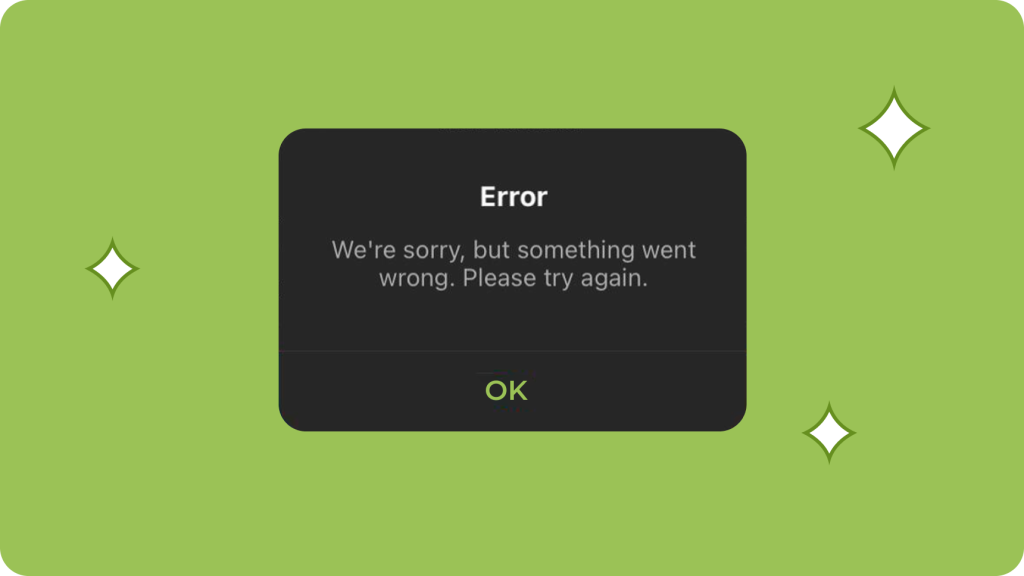
Global Instagram outages are rare, but when they happen, the feed doesn’t refresh, stories won’t open, and the Instagram app may show “Instagram something went wrong” or “Instagram server down.” If friends experience the same issue, it’s not your device. Users worldwide often report problems on Twitter using hashtags like #instagramdown or #instagramoutage.
How to Fix
Let’s skip the guesswork.
- Check for outage information. Visit Downdetector or DownForEveryoneOrJustMe. If thousands report an Instagram outage, it’s a global error and you just need to wait.
- Follow official updates. Meta posts notifications on Meta Status or @InstagramComms (X). If maintenance is in progress, no action is needed.
- Don’t reinstall the app too often. Seeing “instagram something went wrong” is normal during instagram server down — repeated reinstalls won’t help and may delete saved login data.
- Use alternative communication. Check Telegram, X, or TikTok — updates about outages and recovery often appear there first.
- Check notifications. After an Instagram outage, the app may ask you to log in again or confirm your identity.
- Wait a little. Most instagram server down issues are fixed within 30–90 minutes; rarely they last longer.
Tip: if Instagram is partially working (for example, the feed opens but stories don’t load), try refreshing the page or changing your internet connection. Sometimes a global Instagram outage only affects certain regions or types of devices.
Once service is restored, it usually returns to normal automatically, and no additional action is required. If Instagram still isn’t working after a long time, clear your cache and restart your device — this will help reset any residual errors.
Instagram not loading
Sometimes Instagram not loading is one of the most frustrating problems. You open the Instagram app, but the feed is empty, stories are gray, videos don’t load, and avatars don’t appear. Other sites may work fine, but the app seems frozen.
Usually, the reason is simple: unstable connection, cache errors, or temporary server glitches. Sometimes the Instagram app cannot get data from the network, especially on overloaded Wi-Fi or slow mobile data. In other cases, Instagram not working properly is caused by an outdated app version that conflicts with the server.
There are also situations when Instagram does not load only part of the content. For example:
- Photos appear, but stories are not updated;
- Direct messages do not open;
- The web version works, but the mobile app does not;
- The post freezes at the “loading…” stage and never appears.
If you encounter this, try a few simple solutions.
How to Fix
Let’s skip the guesswork.
- Check your internet connection. Switch between Wi-Fi and mobile data if Instagram not loading.
- Clear the cache. On Android: Settings → Apps → Instagram → Storage → Clear cache. On iPhone: reinstall the Instagram app.
- Update the app. Older versions may contain an Instagram bug.
- Restart your device. Often fixes frozen Instagram app.
- Check permissions and storage. Ensure access to memory and network; free up space if needed.
- Turn off power saving mode. It can prevent Instagram not working properly.
- Check servers. If many report issues, it may be an Instagram outage.
- Try the web version. If it works, the problem is with the mobile Instagram app.
- Check date and time. Incorrect settings can cause sync errors
Tip: : if Instagram is not loading only when viewing videos or Reels, try reducing the video quality in the settings or temporarily disabling autoplay. This will reduce the load on the connection and allow the feed to run more smoothly
It’s also helpful to clear your cache and update the Instagram app from time to time to avoid errors building up. After following these steps, the app usually returns to normal and your feed comes back to life.
Instagram not opening
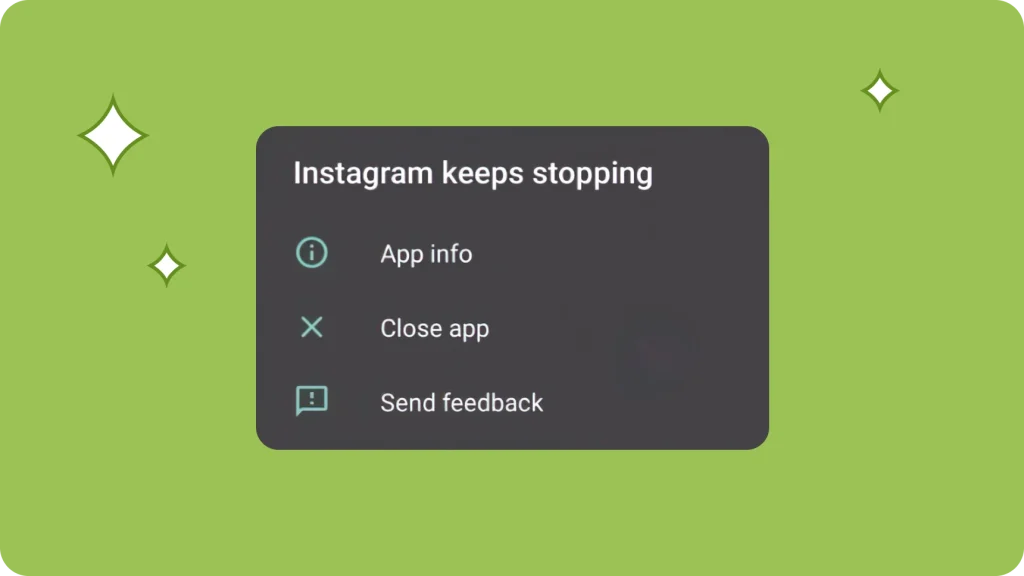
If Instagram is not opening, it can be more annoying than any other glitch. You tap on the icon, and nothing happens: the screen freezes, an error appears, or the app simply closes instantly. Sometimes Android or iPhone even display a message saying “app has stopped.”
There can be various reasons for this. Corrupted cache files, an outdated version, a system crash, or an internal Instagram bug — all of these can lead to you being unable to open the Instagram app. In rare cases, the error appears due to problems connecting to the servers: then the system reports “Instagram refused to connect.”
How to Fix
Let’s skip the guesswork.
- Restart your device. Sometimes a simple restart helps to eliminate minor errors in the operation of applications.
- Clear your cache and data. On Android, do this via Settings → Apps → Instagram → Storage. On iPhone, delete and reinstall the app.
- Check for updates. Make sure you have the latest version of the Instagram app installed — older versions often contain bugs.
- Check your available storage space. If you don’t have enough memory, the app may simply not launch.
- Disable other apps. Sometimes third-party programs (such as memory cleaners or ad blockers) interfere with Instagram launching.
If Instagram still won’t open after following all these steps, it’s most likely a temporary glitch on the service’s end. Wait a while — these errors are usually fixed quickly.
Instagram keeps crashing
If Instagram keeps crashing, the app closes on its own when opening stories, posts, or the feed. Sometimes it freezes briefly, then the screen goes black. This usually happens when Instagram acting up due to update errors, low memory, or system conflicts. In some cases, Instagram broken is caused by a temporary Instagram bug, making the app unable to open.
How to Fix
Let’s skip the guesswork.
- Update Instagram. New versions often fix bugs that cause crashes.
- Clear your device’s cache and memory. Overflowing memory is one of the most common causes of crashes.
- Delete and reinstall the app. This helps if the crash occurred during the last update.
- Restart your phone. Sometimes resetting active processes helps.
- Check your network stability. An unstable connection can also cause content to freeze while loading.
If Instagram keeps crashing even after all these steps, it is most likely a temporary internal bug. Developers usually fix such errors in the next updates.
Instagram glitching
If Instagram is glitching, the app starts to behave strangely: stories disappear, buttons don’t work, posts load twice, or you see a blank screen instead of a photo. Such glitches are usually associated with an internal Instagram bug or a conflict with the latest system update.
How to Fix
- Update the Instagram app — new versions often fix visual and functional errors.
- Clear your cache and temporary files.
- If Instagram is messing up after an update, try rolling back the app to the previous version (this is possible on Android).
- Make sure Instagram has all the necessary permissions — without them, some features may not work properly.
- If the problem is widespread, wait — sometimes Instagram glitches are observed by many users at the same time.
Instagram is slow
When Instagram is slow, the feed takes several seconds to load, videos freeze, and stories open with a delay. This is most often due to slow internet speed, device memory overload, or background synchronization. Sometimes Instagram is slow after updates if the app is not yet optimized for your system.
How to Fix
- Check your internet speed. If the signal is weak, switch to Wi-Fi or a mobile network.
- Close all background apps.
- Clear the cache and free up memory.
- Make sure the Instagram app is updated to the latest version.
- If necessary, restart your device — this helps reset internal processes.
Tip: if Instagram is slow only when loading videos or Reels, try temporarily disabling HD quality — the app will become more responsive.
Instagram not working on Android
Android users also often encounter situations where Instagram is not working on Android: the app freezes, does not open stories, or crashes for no reason. The most common cause is a corrupted cache or conflict with other apps.
How to Fix
- Clear the cache: Settings → Apps → Instagram → Storage → Clear cache.
- Check the permissions for the Instagram app — especially access to memory and the internet.
- Update your Android system.
- Uninstall and reinstall the app.
- If Instagram stopped working after the update, there may be a bug in the new version — wait for the next fix.
Tip: sometimes clearing Google Play Services helps — Instagram may not work correctly if there are synchronization errors.
Instagram Not Working on iPhone
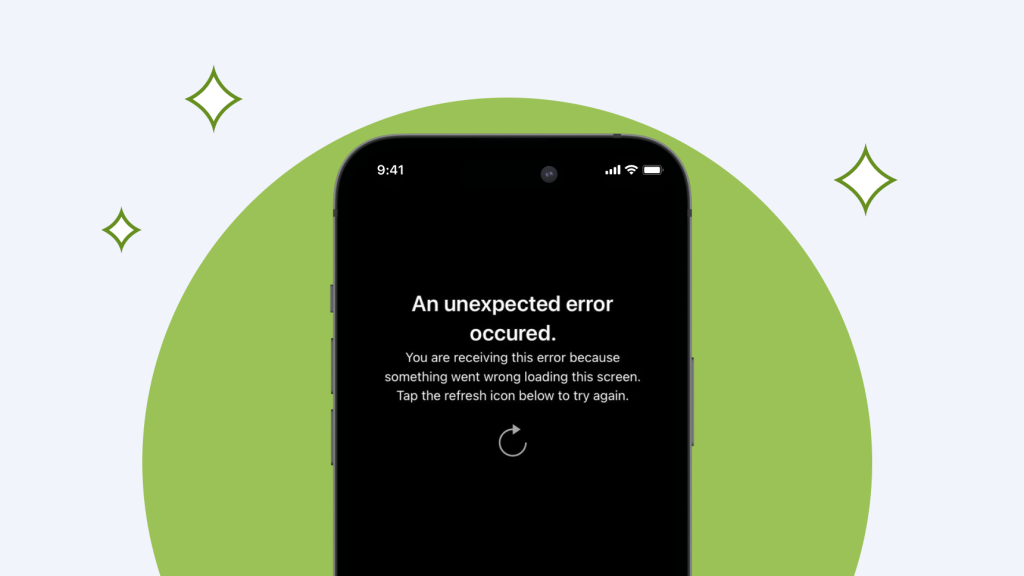
If Instagram is not working on iPhone, it is often due to incompatibility between the iOS version and the app. After updating the system, Instagram may behave erratically: stories do not load, the feed freezes, and an error appears when launching.
How to Fix
- Check for iOS updates — Apple sometimes releases patches that fix compatibility issues.
- Update Instagram to the latest version.
- Restart your device.
- Check your permissions and network access settings.
- If Instagram is only failing for you, try deleting and reinstalling the app.
If Instagram still isn’t working on your iPhone, try logging in through your browser — this will temporarily solve the problem until the developers release an update.
Instagram not working on my phone
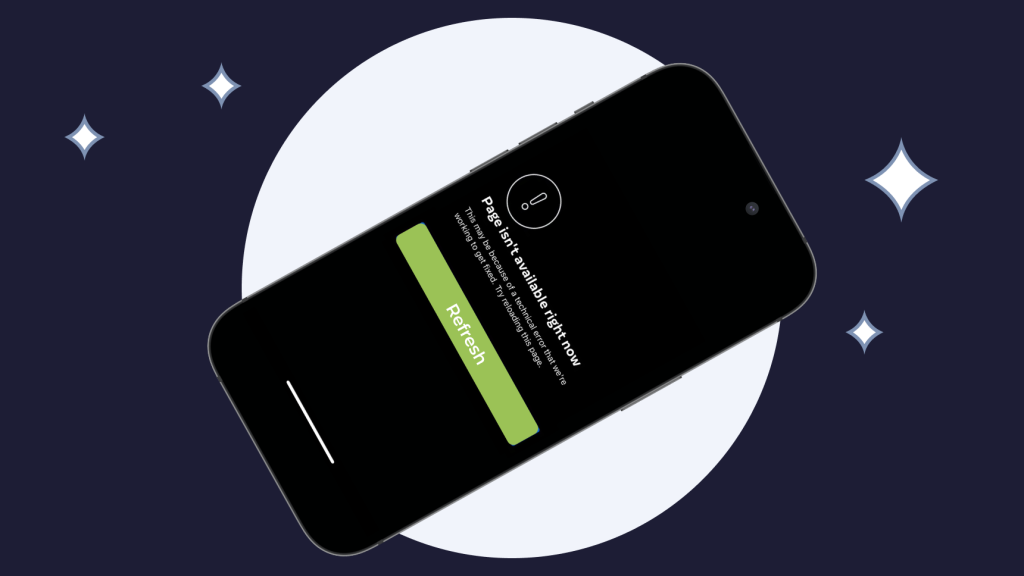
When Instagram is not working on my phone, it is worth checking everything at once: the internet, the app version, system updates, and security settings. Sometimes Instagram issues are related to a temporary account failure or the blocking of a specific feature.
If Instagram won’t open, try logging in with a different account — if everything works, then the error is related to your profile. Try logging out and logging back in. If the problem persists, it is most likely a temporary Instagram problem that will resolve itself within a few hours.
Possible internal causes
In addition to network issues, there are internal reasons why Instagram may not be functioning properly:
- Cache or update error (Instagram malfunction);
- Insufficient memory;
- Corrupted profile data;
- Conflict with other applications;
- Outdated version of Android or iOS.
If you don’t understand what’s wrong with Instagram, try logging back into your account, updating the app, and clearing your memory. This solves most problems when Instagram is acting up for no apparent reason.
Instagram broken
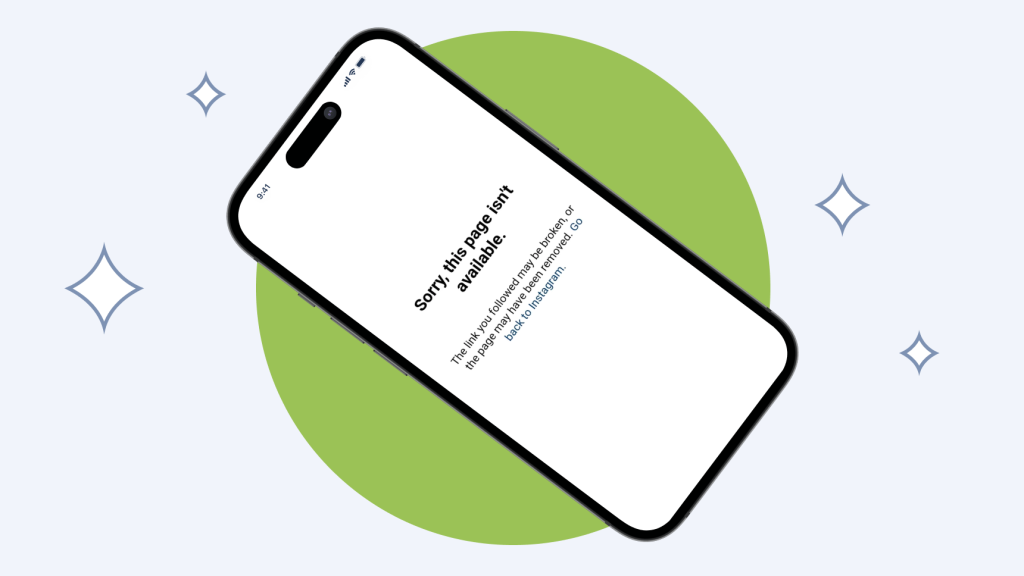
If Instagram is completely broken — the feed doesn’t load, stories don’t open, the screen remains black (Instagram black screen) — then the app has encountered a serious error. This is usually a temporary server failure or a critical Instagram bug.
How to Fix
Step 1. Restart your device.
Step 2. Check if there is an Instagram outage.
Step 3. Reinstall the app.
Step 4. Clear your cache and temporary data.
If nothing helps, wait: if the Instagram server is down, you’ll have to wait for the service to be restored.
Conclusion
When Instagram is not working, don’t panic right away — in 90% of cases, these are temporary Instagram issues. Start with simple steps: check your internet connection, clear your cache, update the app. If nothing helps, wait a while — there may be Instagram maintenance or a temporary server failure.
Regularly updating the Instagram app, maintaining a stable connection, and clearing your memory will help you avoid most errors.
Frequently Asked Questions (FAQs)
-
Why is my Instagram not working today?
There may be an Instagram outage or preventive maintenance. Check the server status and try connecting via VPN.
-
What happened to Instagram right now?
If you see “Instagram something went wrong,” it may be a temporary server-side glitch. Just wait a few minutes.
-
How do I fix Instagram not responding?
Close all background apps, restart your device, and clear the cache. If Instagram is not responding, try updating the app.
-
Why can’t I open my Instagram app?
If you can’t open the Instagram app, the files may be corrupted or there may be a version conflict. Delete and reinstall Instagram.
-
Is Instagram down or just me?
Check monitoring sites. If other users are also complaining about Instagram failing, then the problem is global.