

WhatsApp Not Working: What’s Going On and What to Do
Millions use WhatsApp daily. Its unavailability can result in sudden communication failures. Possible causes range from overloaded memory and outdated apps to system glitches, internet providers, country-level restrictions, or throttling. A VPN bypasses these barriers and secures data. Options like Download VPN, VPN for Android, and VPN for iPhone solve region-specific blocks.
Even during a broader WhatsApp outage, a VPN can sometimes allow access via alternative regional servers. While it does not fix server-side errors, it keeps you connected when your region is temporarily blocked.
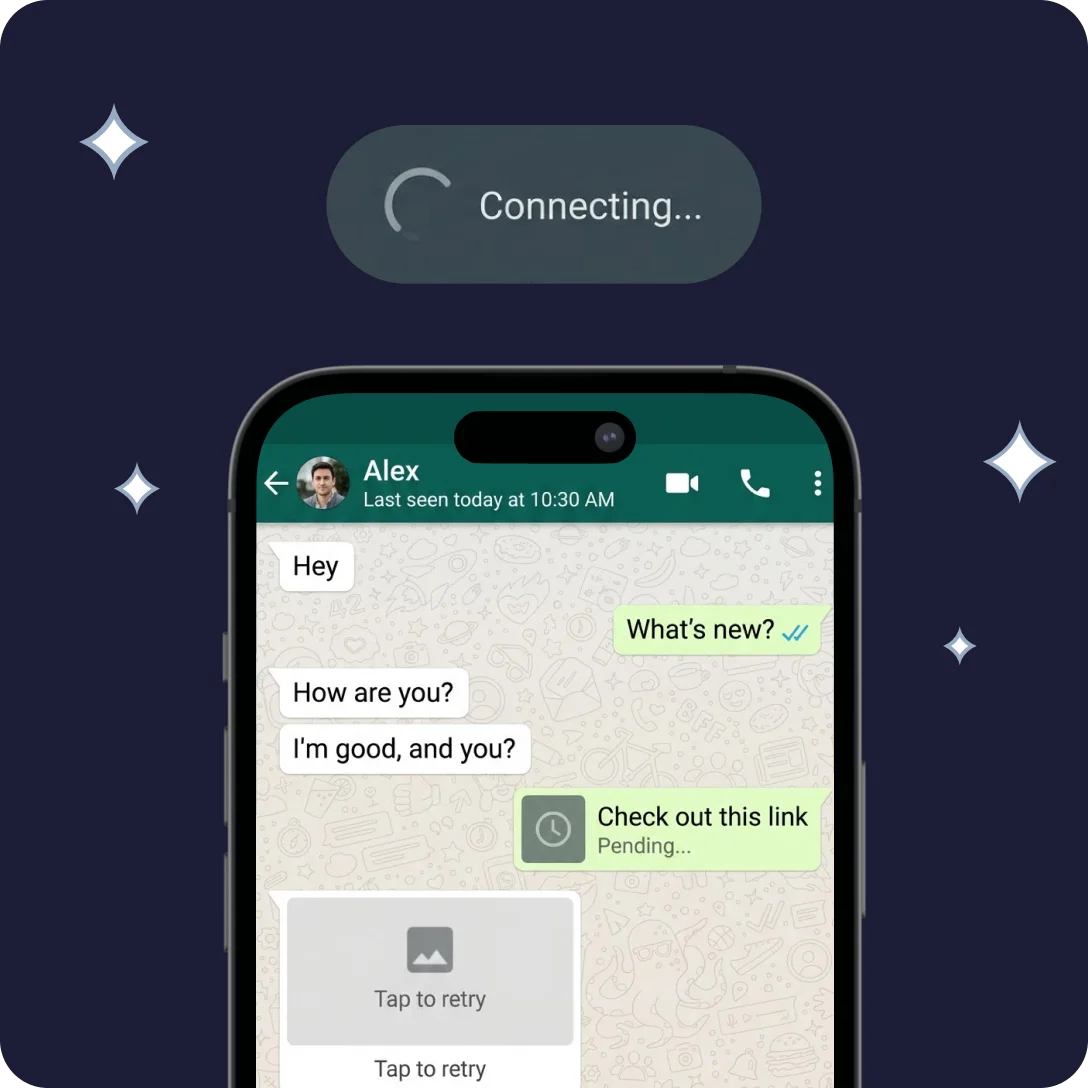
Why is Whatsapp not working
Users frequently ask, what’s wrong with whatsapp, when messages refuse to send or media fails to load. Whatsapp issues often come from overloaded devices, app permission problems, or unstable networks. Outdated app versions trigger frequent failures. Glitches in the OS or conflicts with other apps can stop messages mid-send.
Cached files sometimes corrupt operation. Even strong Wi-Fi cannot guarantee smooth performance if whatsapp not refreshing properly. Switching between networks or uploading large media can trigger hidden bugs. According to our data, app updates colliding with older system components explain a significant share of user complaints.
How to Fix:
- Restart the app or device.
- Clear app cache and temporary files.
- Check that your network connection is stable.
- Update WhatsApp to the latest version.
- Use a VPN to bypass regional or ISP restrictions.
- Reboot your router if using Wi-Fi; occasional handshake failures cause intermittent issues.
Whatsapp is down
IWhen millions report simultaneous problems, whatsapp is down. Causes include whatsapp outage, whatsapp maintenance, or server-side updates.
Global unavailability hits multiple regions. Messages fail, calls freeze, and media fails to load. Meta usually resolves this internally, but it can take time. Some outages correspond to server reroutes in specific regions. Minor DNS delays or sudden traffic spikes make the app appear entirely offline.
How to Fix:
- Check status-monitoring websites for live outage reports.
- Wait for Meta to finish technical work.
- Use VPN to try a different region.
- Switch from Wi-Fi to mobile data.
- Reset DNS or switch to a public DNS server if connections fail.
Whatsapp not loading
A frozen or blank screen signals whatsapp not loading. Sometimes chats fail to sync, media doesn’t appear, or the interface hangs mid-scroll.
This often occurs due to device memory overload, outdated apps, or conflicts with other processes. Background syncing of large media files frequently triggers this issue, especially on Android devices with limited RAM.
How to Fix:
- Restart your device.
- Update the app.
- Verify date and time settings.
- Close or disable conflicting background apps.
- Clear app data and cache completely.
- Use VPN to bypass regional blocks if media fails to load.
Whatsapp not opening
If whatsapp not opening, the root cause may be corrupted files, misconfigured networks, or strict security policies. Antivirus software or parental controls sometimes block the app entirely.
OS updates can reset permissions or alter network settings, making the app stall. Switching between Wi-Fi and mobile data often freezes launch, leaving users staring at a blank screen. According to our analysts, permission conflicts and leftover app data account for a large portion of complaints.
How to Fix:
- Reinstall the app completely.
- Disable power-saving modes temporarily.
- Check parental controls and firewall settings; ensure WhatsApp is allowed.
- Try a different browser or network for WhatsApp Web.
- Reset app permissions, granting network and storage access again.
Whatsapp keeps crashing
Frequent closures indicate an internal whatsapp bug or conflicts with recent updates. Whatsapp failing often appears on older phones or devices with low RAM.
Crashes occur when multiple apps run simultaneously, background processes interfere, or temporary files corrupt app behavior. On Android, task managers may kill essential background services, causing mid-use crashes. Even minor OS glitches trigger unexpected closures.
How to Fix:
- Clear app data and cache fully.
- Remove recent updates and reinstall the app.
- Scan the device for malware.
- Free up RAM and storage space.
- Close other apps running in the background before opening WhatsApp.
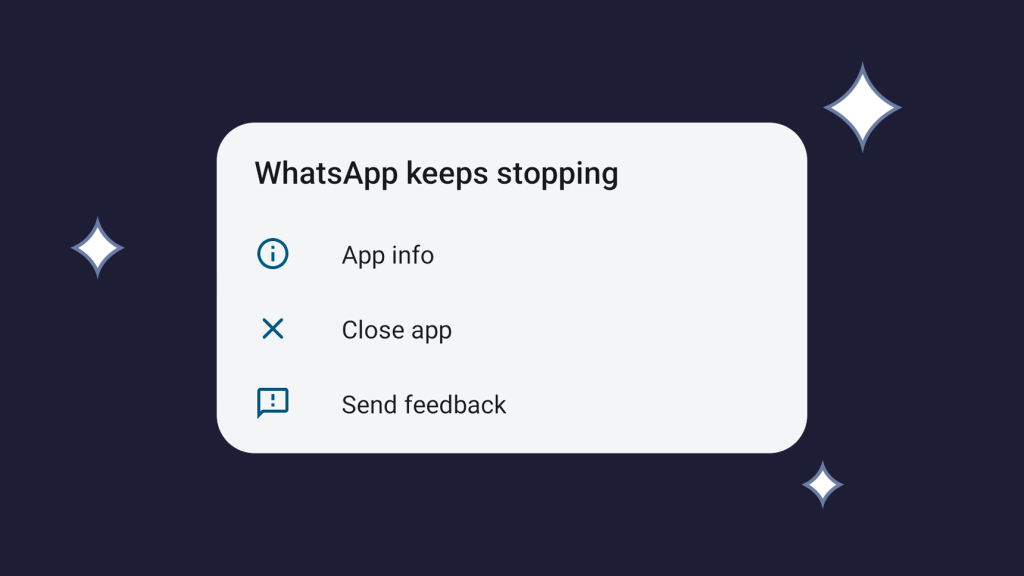
Whatsapp not responding
When whatsapp not responding, overloaded apps, insufficient RAM, or temporary server-side errors (whatsapp server down) are usually to blame.
Messages freeze mid-send, calls drop, and media sometimes fails entirely. Performance often returns after a restart or network refresh. Some users experience intermittent stalls when switching networks during active sessions.
How to Fix:
- Close other apps to free memory.
- Restart your device fully.
- Verify that your internet connection is stable.
- Use a VPN to switch regions if access is blocked.
- Toggle mobile data off and on to refresh network handshakes
Whatsapp glitching
Visual or functional irregularities, such as a whatsapp bug, disappearing buttons, or flickering UI, signal whatsapp glitching.
Conflicts in JavaScript or UI elements, corrupted cache, or outdated app builds frequently cause these issues. Glitches often appear after new releases, before updates stabilize fully. Flickering screens, missing buttons, or distorted media previews are classic signs.
How to Fix
- Update WhatsApp to the latest version.
- Clear app cache completely.
- Restart the device to refresh system resources.
- Reset app settings if glitches persist.
- Temporarily disable GPU acceleration on Android or force-close background services..
Whatsapp slow
Sluggish performance signals whatsapp malfunction or local whatsapp problems. Messages may lag, media can fail, and notifications might arrive late. Network congestion, overloaded servers, or too many background apps often amplify delays. Phones running power-saving modes slow even further, while large file transfers sometimes freeze the interface entirely. According to our analysts, internal caching and background sync processes contribute heavily to slowdowns.
How to Fix
- Clear cache and temporary files thoroughly.
- Switch to Wi-Fi or a faster network to reduce lag.
- Close background apps that may compete for RAM.
- Use a VPN if regional throttling affects speed.
- Restart the device after multiple updates or large media transfers.ntent.
Whatsapp not working on iPhone
On iOS, whatsapp not working on iPhone often occurs due to system restrictions, storage limitations, or outdated OS files. Messages may fail, media sometimes refuses to load, and notifications disappear unpredictably. Battery-saving modes, background app limits, and low storage exacerbate these issues. VPNs occasionally bypass ISP restrictions that block calls or media streams.
How to Fix
- Reinstall the app to clear residual conflicts.
- Free up storage space immediately.
- Update iOS to the latest version available.
- Temporarily disable low-power mode.
- Reset app permissions for storage and network access.
- Connect via VPN to bypass regional or carrier-level blocks.
Whatsapp not working on Android
On Android, whatsapp not working on Android frequently stems from update conflicts, permission misconfigurations, or background task interference. Apps crash, sync fails, or functionality stops entirely. Older devices with limited RAM or aggressive task managers are especially vulnerable. Leftover cache and files from previous versions often cause freezes, black screens, or failed media downloads.
How to Fix
- Clear app cache and temporary files.
- Reinstall WhatsApp completely.
- Update Android OS to the latest version.
- Disable battery optimization and background app killers.
- Use a VPN if network or regional restrictions are applied.
- Close unnecessary apps before launching WhatsApp.
Conclusion
If whatsapp broken or unresponsive, systematically check your device, app, and network settings. VPN use removes provider or regional blocks, often restoring access instantly. Step-by-step application of the fixes above resolves most whatsapp issues.
Try a VPN now to verify that whatsapp not working is not tied to your country or provider. Stable connectivity, media delivery, and uninterrupted messaging often return immediately after proper VPN configuration.
Frequently Asked Questions (FAQs)
-
Is WhatsApp not loading only for me?
Local faults block access more often than people expect. Outdated app builds, tight device memory, and shaky connections trigger most of these cases. Restart the app. Switch networks. Maybe test with a VPN to isolate the cause.
-
Why does the app crash or freeze?
Crashes tie back to a whatsapp bug, pressure on system memory, or clashes with background software. Reset the app data or reinstall clean. It fixes more than people think.
-
Why is WhatsApp not working right now?
Server outages, technical updates, and carrier-side disruptions knock the service offline without warning. VPNs sometimes route around traffic blocks. Live status pages help confirm whether the trouble runs wider.
-
Some issues appear after updates. What can I do?
When whatsapp stops working after an update, corrupted files or broken permissions usually sit behind the mess. Reinstall the app. Clear residual data. Check access rights. VPNs help if regions throttle traffic.
-
Can VPN solve network-related WhatsApp problems?
Yes. VPNs bypass ISP limits, routing blocks, and carrier filters that break calls, media transfers, or message sync. According to our analysts, this workaround solves issues in a big share of mobile cases.