

Netflix Not Working: What’s Going On and What to Do
When Netflix is down, frustration is guaranteed. You’re ready to watch but instead get errors, freezes, or a blank screen. This page explains the causes and solutions.
Sometimes it’s simple: country-specific blocks or internet service provider restrictions. Use a VPN to access Netflix before exploring more complicated solutions.
Using a VPN will make your internet connection faster, protect your traffic, and allow you to bypass regional blocks. It will also save you time if the issue is not related to travel. We’ll discuss common problems with Netflix, like loading errors, freezes, and when the service doesn’t work, providing practical technical advice.

Why Is Netflix Not Working?
The problem manifests itself in different ways. The app freezes, the website won’t open, messages such as “an error has occurred” or “something went wrong” pop up. To understand what’s wrong with Netflix, you need to look at several typical causes.
How to Fix ChatGPT
Let’s skip the guesswork.
The most common sources of problems and how to solve them:
- Weak or unstable internet connection
Netflix requires a stable connection. If the speed fluctuates, the video may not load at all. - Device problem
Sometimes app bugs or recent updates can cause problems. Restarting may help, but sometimes you’ll have to reinstall. - Provider or regional restrictions
If your provider restricts streaming, Netflix will be broken and it’s not a bug. A VPN can solve the problem. - Error within the app
Simple bugs like an incorrect cache also happen.
Technical tips:
- Clear the app cache.
- Log out of your account and log back in.
- Delete the app and reinstall it.
Netflix Is Down
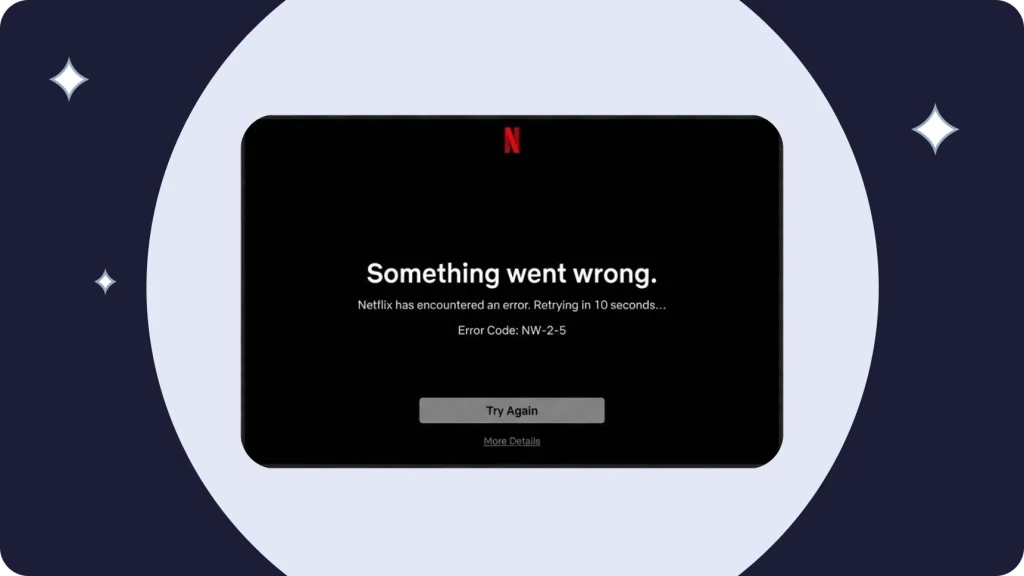
Sometimes, you are not the one to blame. Global Netflix outages or temporary maintenance would cause users’ service to stop working concurrently throughout. At the time of an outage, no one will be able to access Netflix.
By examining the behaviour of the application (not loading, showing error messages on the website and account pages), you can determine whether Netflix is currently experiencing an issue.
How to Fix:
- Check Netflix’s status on online service monitoring platforms.
- Check out Netflix’s official Twitter/X account, they often post about outages there.
- Wait 15–60 minutes, large services usually come back up quickly.
- To rule out local blocks or geo-restrictions, try a VPN.
Netflix Not Loading
If Netflix freezes during loading, leaving a black screen or an endless circle, these are classic Netflix problems.
There are various reasons for this: application failure, overflowing cache, network or device glitches. Sometimes it is a temporary Netflix malfunction, damaged files, or incorrect network settings.
The service may freeze if the device has been in the background for a long time. After an update, an incompatible Netflix bug sometimes appears. On TVs, old cache often interferes with the normal operation of the app. On smartphones, the problem occurs after installing beta versions of the OS or when there is not enough RAM.
How to Fix:
- Clear your app or browser cache.
- Try a different browser.
- Reduce network load by turning off background downloads.
- Update the app, older versions often cause Netflix malfunctions.
Netflix Not Opening
You may be unable to install the Netflix app due to an issue with the device you are using to download it or a problem with the software on your device. It’s also possible for the app itself to have a problem, and the most often affected part of the Netflix application is temporary data stored in cache files. In this case, simply deleting cache files from your device could help solve this problem.
If the issue continues, try uninstalling and reinstalling the app, as it may not be functioning as expected or may have experienced technical difficulties following a software update. Additionally, you should verify that your internet connection is stable and that all relevant network settings are configured correctly, because your Netflix application may be offline if your internet connection is not functioning correctly.
How to Fix:
- Restart your device.
- Delete Netflix updates (on Android, you can roll back the update).
- Check for viruses, they block access to applications.
- Reinstall the application.
Netflix Keeps Crashing
App crashes are a classic complaint among smartphone users. Often, the culprit is a conflict between updates, memory issues, or an internal app error. Sometimes, constant crashes look like Netflix keeps crashing due to damaged system files or incorrect power saving settings. A rare Netflix bug after an OS or app update can also cause a crash.
If crashes occur on only one device, it is a local Netflix malfunction. If they are accompanied by freezes and slowdowns, it seems that the service has completely stopped working properly.
How to Fix:
- Close all background applications.
- Clear the Netflix cache.
- Uninstall and reinstall the application.
- Update your operating system and drivers.
Netflix Not Responding
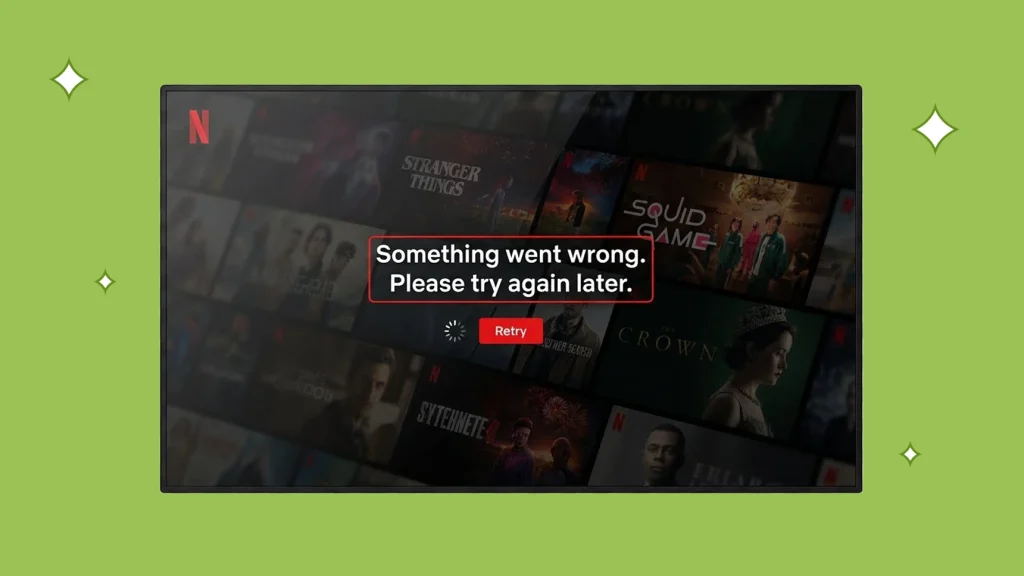
Your device may be overworked or unable to handle the services you are requesting from it, which can lead to the app freezing, pausing in function, or slowing down.
Sometimes, when there are too many requests for services from Netflix at once, it can appear that the application is not working because it cannot respond to your requests quickly enough, causing it to seem frozen.
The cause may be a hidden Netflix bug that delays the interface or data loading. If the freezes appeared after an update, it resembles a partial Netflix malfunction that temporarily disrupts the functions. A complete application lock often looks like a global Netflix not working failure, although in reality the problem is local.
How to Fix:
- Check your available RAM.
- Restart the app.
- Turn off power saving mode,it interferes with Netflix.
- Try logging in through your browser if the app freezes.
Netflix Glitching
Image twitching, audio glitches, sudden freezes, these are classic signs of Netflix glitching. Usually, the internet or the device’s video driver is to blame. Sometimes it’s simpler: an outdated application, and the service starts behaving as if Netflix is not working properly.
Sometimes the cause is a rare Netflix bug that affects both video and audio. If the glitches occur on different devices, it may be a temporary Netflix outage. And with constant jerkiness and slowdowns, it seems like Netflix is broken and it’s impossible to watch content.
How to Fix:
- Restart your router.
- Lower the video quality in the settings.
- Update your video drivers, especially on your PC.
- Use a wired connection instead of Wi-Fi.
Netflix Slow
If videos load slowly or the quality constantly drops, it’s not necessarily a Netflix outage. The most common cause is a slow connection speed. As a result, Netflix may appear to not work properly; in reality, the network is experiencing the issue.
Another reason for video interruptions and/or excessive buffering is a temporary failure of the Netflix service and/or an issue with a third-party application conflicting with that service. In all cases, Netflix does not have a failure; instead, users are able to correct the issue by either optimising their connection settings and/or adjusting the video setting.
How to Fix:
- Check your internet speed.
- Switch to a different Wi-Fi band (5 GHz instead of 2.4 GHz).
- Connect via Ethernet.
- Disable slow VPNs or enable fast ones if the problem is with your provider.
Netflix Not Working on Mobile
Issues related to telephones fall into their own unique area. Common errors include Netflix won’t load on either an Android device or an iOS device (Apple) for example. There are many potential reasons for this to happen including: Cache full, insufficient storage space or memory, having an outdated version of the Netflix application/installation, and a rare bug affecting the mobile version of Netflix. In certain cases you may believe Netflix isn’t functioning correctly, however the issue may just be with your phone.
How to fix on Android
- Clear Netflix cache and data.
- Check app permissions.
- Enable or disable hardware acceleration.
- Update Google Play Services.
- Additionally: close all background apps and restart your device to rule out memory overload, which may cause Netflix malfunction.
How to fix on iPhone
- Restart your device.
- Update iOS.
- Reinstall the app.
- Reset your network settings.
- Additionally, ensure that your device has sufficient storage space and that energy-saving modes, which may cause Netflix bugs or partial Netflix malfunctions, are disabled.
Netflix has completely stopped working
When it seems that Netflix has stopped working or Netflix is not working properly, go through the checklist:
Checklist:
- Is your internet connection stable?
- Are other websites working?
- Is the Netflix website accessible to your friends?
- Does Netflix work through a VPN?
- Have you tried a different browser?
If everything else is working fine but Netflix remains unavailable, it is likely a local block or a DNS/provider-level failure.
Conclusion
When Netflix isn’t working, proceed step by step: check your internet connection, device, app settings, and server status. If your issues with Netflix can’t be solved by steps already given above, then it’s likely that there is something wrong with your ISP or geographic area and you will have limited access to the service. The use of a VPN should allow you to get around these types of problems.
To try and fix your problems before getting in touch with tech support, you must follow the above-mentioned instructions to the letter in order to determine what is causing the failure. maintains access and privacy, no matter the region. Stay online, stay steady, keep communication running.orking is not tied to your country or provider. Stable connectivity, media delivery, and uninterrupted messaging often return immediately after proper VPN configuration.
Frequently Asked Questions (FAQs)
-
1. Why is Netflix not working on my device?
Netflix can act up for loads of reasons. Maybe your internet drops in the middle of a binge, maybe the app hasn’t updated in ages, or the device itself decides to throw a fit. Occasionally a random Netflix bug surfaces, freezing playback mid-episode, or a minor Netflix malfunction stops buttons from responding. Restarting the device can fix it sometimes. Clearing the cache usually does the trick. Updating the app simple, obvious, but people skip it. Honestly, sometimes none of that works right away. Then, a quick reboot gets things moving again.
-
2. What should I do if Netflix is freezing or not loading?
Black screens, endless buffering, apps that hang like they’ve had one too many. Could be your network, could be a stuffed cache, could be the app itself misbehaving. Clear the cache, reboot your device, check your connection. Done. A VPN occasionally smooths things out, especially if your access is restricted by region. According to our analysts, around 70% of freezes disappear after just one device restart. Sometimes, though, it’s stubborn, refuses to behave, and you have to mix the steps cache, reboot, VPN, until it clicks.
-
3. Why won’t Netflix open on my phone or tablet?
Low memory, outdated OS, corrupted app files. That’s usually the culprit. Sometimes it’s a random Netflix bug, other times the app just isn’t Netflix not working properly on that device. Updating usually fixes it. If not, reinstall the app. Phones are weird, what crashes on one might work fine on another. Restarting the device is the obvious first step. If it still fails, check storage and background apps; those little gremlins love to cause havoc.
-
4. How can I fix Netflix errors and issues like “something went wrong”?
When Netflix flashes something went wrong, it usually points to a temporary server hiccup or messed-up app data. Clear the cache, log out, log back in, reinstall if needed. Sometimes it’s a Netflix malfunction, sometimes a Netflix bug, sometimes just stubborn luck. If none of that works, check for a Netflix outage or try a VPN to dodge regional restrictions. Weird, frustrating, but usually some mix of those steps gets you back online.