

YouTube Not Working: What’s Going On and What to Do
If YouTube isn’t working, don’t panic — you’re not alone. Millions of users encounter problems every day, such as videos not loading, pages freezing, or the message “Something went wrong” appearing.
There can be various reasons for this, ranging from internet connection problems to country-wide or ISP-level blocks.
Why is YouTube not working?
If you’re wondering what’s wrong with YouTube, start with some simple checks. Sometimes the problems aren’t with the service itself, but with your internet connection, browser, or device.
How to fix
- Check your internet connection.
- Clear your browser’s cache and cookies.
- Try opening YouTube in incognito mode.
- Restart your device.
- Connect to a VPN if your internet service provider restricts access.
If YouTube still isn’t working properly, try changing your DNS or updating your browser to the latest version.
YouTube is down
Sometimes there is a YouTube outage — a global server failure. In this case, the problem is not with your device, but with YouTube’s infrastructure.
Such situations are rare, but when they do occur, the service may be unavailable to millions of users around the world.
You may notice that videos are not loading, a “Something went wrong” message appears, or the site does not open at all.
How to fix
- Check the status on the Downdetector website.
- Wait 10-15 minutes — YouTube engineers usually resolve such YouTube problems quickly.
- Use a VPN if the outage only affects a specific region.
YouTube not loading
If YouTube is not loading, the page may not open due to an overloaded cache, extension conflicts, or network blocks. Sometimes the problem occurs when the browser cannot load the site’s scripts due to outdated files or a DNS failure.
Another reason could be restrictions imposed by your internet service provider or corporate firewall. In rare cases, a temporary YouTube bug may affect page loading.
Users often notice that YouTube simply displays a white screen, endless loading, or the message “Something went wrong.” If you encounter this behavior, it is important to determine whether it is related to your device or the service itself.
How to Fix
Let’s skip the guesswork.
- Disable ad blockers and extensions that interfere with video loading.
- Clear your browser history and delete cookies.
- Try opening YouTube in a different browser or incognito mode.
- Restart your device and update your system.
- Connect via VPN — this will eliminate the influence of your ISP and allow you to check if access to the site is restricted at the regional level.
- If YouTube still isn’t loading, try changing your DNS (for example, to Google DNS 8.8.8.8).
YouTube not opening
If YouTube is not opening, it is possible that the site is being blocked by your internet service provider or corporate network. Sometimes DNS servers simply cannot find YouTube’s address, which prevents the page from loading.
The issue may be related to a firewall, outdated browser settings, or even malware that interferes with network performance.
It is also common for YouTube to not open due to proxy servers or security filters set up at the company or educational institution level.
To rule out these causes, try checking access to other sites and make sure the connection is stable. If everything else works, your provider has probably restricted access to YouTube — in which case a VPN will help.
How to Fix
Let’s skip the guesswork.
- Check if other websites are opening.
- Restart your router and device.
- Change your DNS to Google (8.8.8.8) or Cloudflare (1.1.1.1).
- Clear your browser cache and disable your proxy.
- If YouTube still won’t open, install Download VPN to bypass blocks and connect to YouTube securely.
YouTube keeps crashing
If YouTube keeps crashing, it could be a YouTube bug or an application conflict with the operating system. This often happens after updating YouTube or the operating system (OS) itself. When this happens, the old version of the application doesn’t work with the new system libraries.
Sometimes crashes happen because the device is overheating, the memory is overwhelmed, or there are cache errors. The app might close suddenly when you’re watching a video or launching one.
YouTube also keeps crashing if the device is infected with viruses, if conflicting extensions are installed, or if too many background processes are running. On Android and iPhone devices, this is often due to outdated Google Play Services components or an unstable Wi-Fi network.
If you see that the app only crashes when it’s connected to a certain network, your internet provider or local network might be blocking your connection to YouTube servers. In this situation, it is worth using Planet VPN, a free and secure VPN service that will help stabilize your connection and bypass network filters.
With Planet VPN, you can connect to servers in other countries, avoid restrictions, and watch videos without crashes or errors. The program does not require registration, protects your traffic, and speeds up access to YouTube during network failures.
How to Fix
Let’s skip the guesswork.
- Clear the application cache.
- Update YouTube to the latest version.
- Restart your device.
- Uninstall and reinstall the app.
- If YouTube keeps crashing only on your network, use a VPN to bypass restrictions.
YouTube not responding
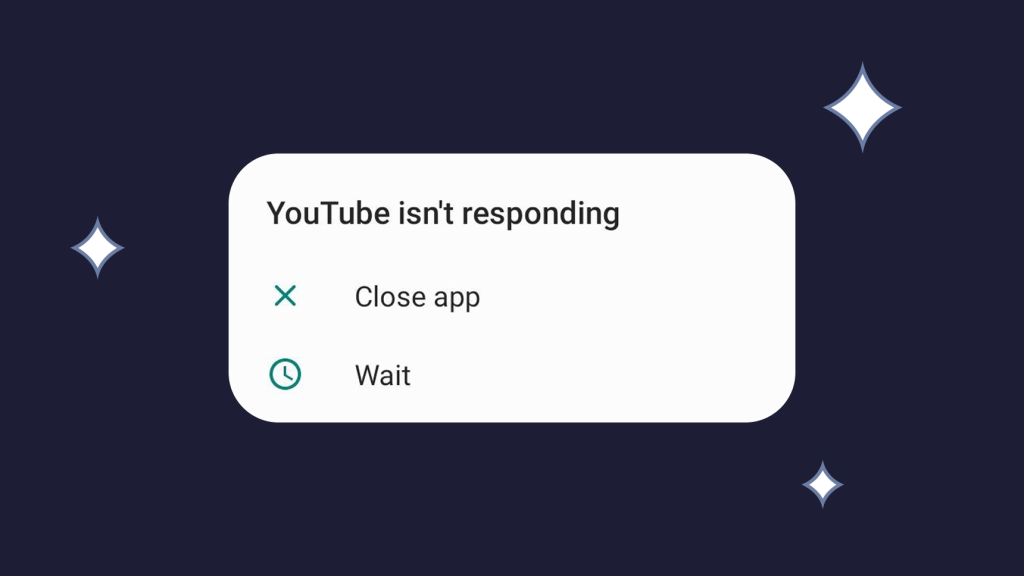
When YouTube is not responding, the site freezes, videos do not play, and buttons do not respond to clicks. This could be because the processor is overloaded, there are conflicting extensions, or there are temporary browser errors. Sometimes background processes block JavaScript scripts from running, causing page elements to stop working.
Sometimes this happens because YouTube is doing maintenance. While we’re working on it, you might see a frozen page or an error message. Also, an unstable internet connection or restrictions from your internet provider can make the problem worse.
How to Fix
Let’s skip the guesswork.
- Close unnecessary tabs.
- Disable browser extensions.
- Restart your browser.
- Clear your cache and refresh the page.
Tip: To prevent freezes and errors, use Planet VPN every time you connect to a public Wi-Fi network or unstable internet connection. This will help YouTube run smoothly, without glitches or temporary blocks.
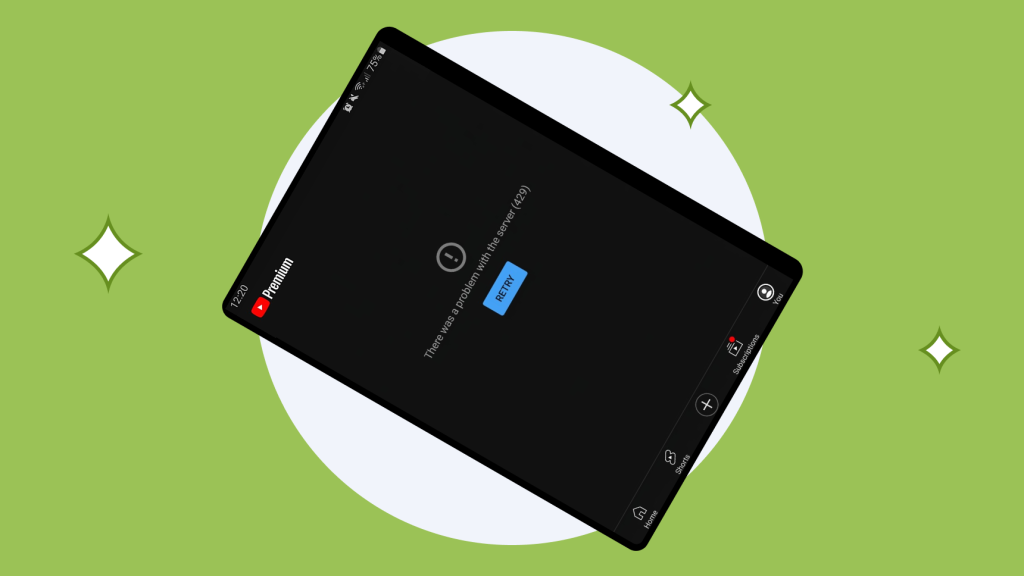
YouTube glitching
If the interface is unstable, images flicker, or sound disappears, it may be a YouTube malfunction. The problem is often related to the graphics drivers, a conflict between the browser and the video card, or enabled visual effects.
Sometimes glitches only happen on a specific network, for example, when the provider limits traffic. When this happens, using Planet VPN can help you stay connected and get around network filters. With a VPN, the YouTube interface works smoothly, videos play correctly, and problems like flickering and sound loss disappear.
How to Fix
- Update your video card drivers.
- To solve this, you’ll need to disable hardware acceleration in your browser.
- Clear your cache and cookies.
- Check if night mode or a theme that causes glitches is enabled.
- If YouTube only glitches on your network, connect to Planet VPN for stable performance.
Tip: To make the YouTube interface more stable, try restarting your browser and disabling unnecessary extensions. This will reduce the load on the system and, together with Planet VPN, ensure smooth video playback without errors.
YouTube slow
Videos load slowly, frequently pause, and the buffering indicator spins endlessly. This is a common problem, especially with limited internet speed or artificial traffic throttling. Sometimes, providers intentionally make streaming video slower to deal with network congestion during busy times.
There are a few ways to make YouTube better and reduce lag. First, check your internet connection speed. Make sure it’s fast enough for streaming video. You can also speed up loading by closing background applications and tabs that use a lot of traffic. If you lower the video quality, it will use less of your network’s resources and stop pausing.
How to Fix
- Use a service like Speedtest to check your internet connection speed.
- Close all unnecessary background applications and tabs, especially those that are using the internet.
- To save space, reduce the video quality (e.g., from 4K to 1080p or 720p).
- Update your browser or YouTube app to the latest version to improve stability.
Tip: Regularly clearing your browser cache and temporary files on your device helps speed up video loading and improve overall YouTube performance. It’s also a good idea to keep an eye on the number of tabs and background programs you have open at the same time to reduce the load on your system.
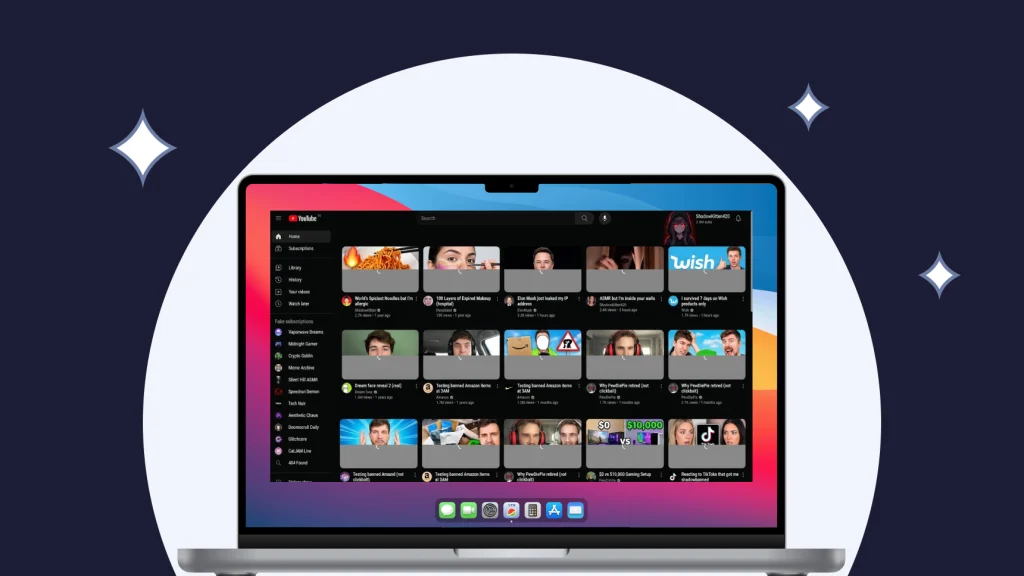
YouTube not working on iPhone
YouTube doesn’t always work on iPhones. If it’s not working, check your network settings and system updates. Sometimes older versions of iOS don’t work well with newer versions of the app. This can cause problems and prevent videos from loading. Content restrictions or parental controls may also be blocking access to certain videos.
To fix this, we suggest restarting your device, updating iOS and the YouTube app to the latest versions, and checking your parental control and content restriction settings. If you can’t access videos in your region, you can use a VPN for iPhone to get around the restrictions and watch the videos.
YouTube not working on Android
Before you contact YouTube support, check your Android device’s memory and internet connection. Sometimes older versions of the app stop working properly after a system update, and the message “YouTube has stopped working” may indicate that the app data has been corrupted.
To solve the problem, we recommend doing the following:Clear the YouTube cache and data.Install the latest version of the app.Restart the device.Check the permissions and power settings. A VPN for Android can help you get around regional restrictions and access the content you’re looking for.
What happened to YouTube?
When people ask, “What happened to YouTube?”, it could be that YouTube is testing new features or making updates. These changes can sometimes cause temporary problems with the interface or reduced performance. Also, a broken YouTube interface may be the result of a bug in the code or an unstable version of the application.
To fix this, try restarting the device and the app, clearing the cache, and updating YouTube to the latest version. Update the application and system regularly, check the internet connection, and close unnecessary background apps. This will speed up loading and improve interface responsiveness.
How to Fix
- Update the app regularly.
- Check the official YouTube and Twitter channels.
- Use a VPN to access a stable international version.
YouTube something went wrong
The “youtube something went wrong” error appears when there’s a temporary server connection issue or when you’re trying to log in from a restricted network, like at work or school. Sometimes the problem is related to an unstable internet connection, an overloaded browser cache, or conflicting extensions.
To solve the problem, we suggest that you refresh the page and restart your device. You should also clear your browser cache and cookies, and check your internet connection. If the error continues, try connecting to a different network or using a different device.
How to Fix
- Reload the page.
- Reset your network settings.
- If the problem persists, turn on your VPN.
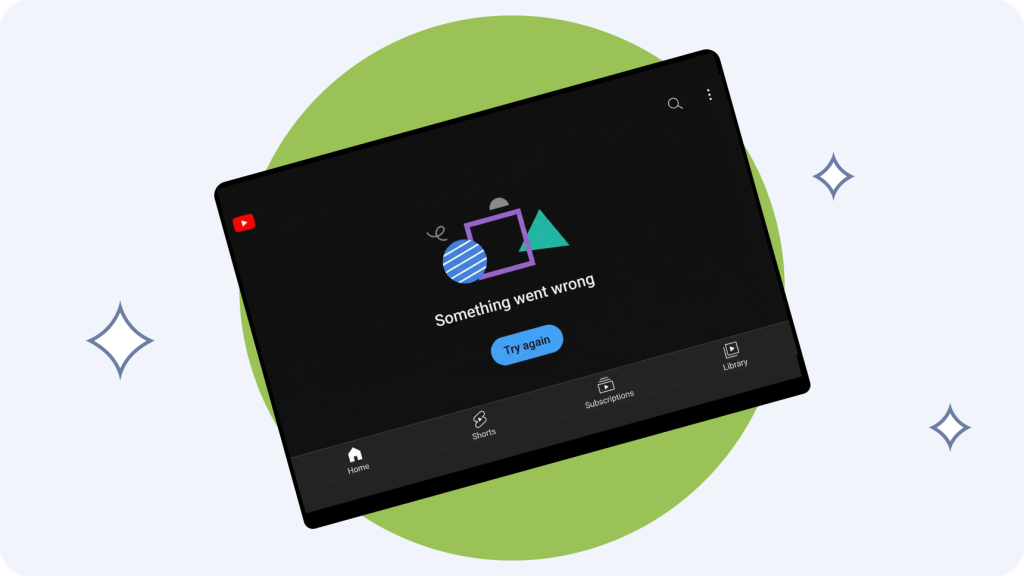
YouTube server down
YouTube is responsible for fixing the problem when their servers are down. In these cases, users may experience the site being completely unavailable, error messages, or an inability to play videos. Most of the time, these problems are caused by overloaded servers, maintenance, or temporary issues with YouTube’s infrastructure.
You can’t fix the problem directly, but it’s helpful to check the service status on websites like Downdetector from time to time. This will help you see if the problem is affecting a lot of people.
How to Fix
- Wait until the YouTube outage is resolved.
- Check the status of the servers.
- Use a VPN to make sure the outage is not local.
Tip: To minimize time lost during such outages, plan your viewing in advance and save interesting videos to “Watch Later.” This will allow you to continue watching as soon as the service is restored.
YouTube black screen
The YouTube black screen that appears when you start a video is usually caused by a conflict between plugins, video card drivers, or problems with the video card itself. Sometimes, the problem is caused by incorrect browser settings, outdated graphics drivers, or hardware acceleration enabled. If you’re having trouble with flickering or a black screen, check that you have stable themes and extensions that display video properly.
To fix the problem, we recommend updating your video card drivers, disabling hardware acceleration, and checking your browser and video card settings.
How to Fix
- Update your graphics card drivers.
- Turn off hardware acceleration.
- Check if the video is being blocked by antivirus software.
- Clear your browser cache.
Tip: To make your computer work better, close all unnecessary applications and tabs. This often helps get rid of the black screen and speeds up video playback.
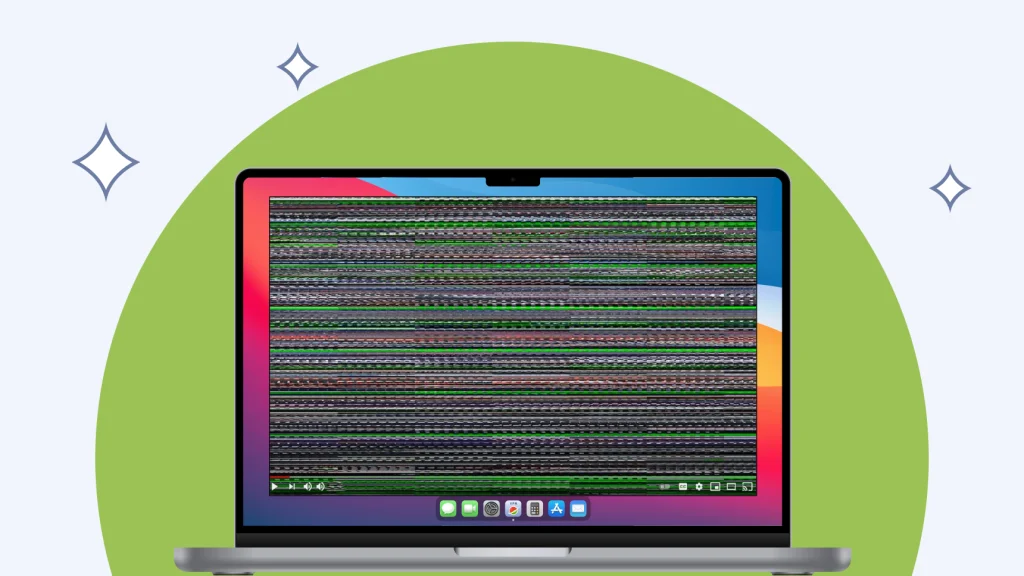
YouTube failing or broken
The YouTube app may fail or malfunction due to a system issue or error. Sometimes, just updating the app or clearing its data is enough to fix it. Problems can also be caused by conflicts with other applications, overloaded RAM, or an unstable internet connection.
How to Fix
- Uninstall the old version and reinstall it.
- Reset your network settings.
- Use a VPN — it will help if the error is caused by content blocking in your region.
Conclusion
If YouTube isn’t working, don’t immediately blame your device. Most often, the problem can be fixed in a few minutes by clearing the cache, updating the app, or using a VPN.
Try VPN for YouTube to avoid blocks, increase download speeds, and watch videos without restrictions.
Frequently Asked Questions (FAQs)
-
Why is YouTube not working today?
Sometimes there are global YouTube outages due to technical work. Check the server status on special websites and try connecting later.
-
How do I know if it’s a YouTube problem or my internet?
Open other websites. If they work, YouTube may be undergoing maintenance. If not, check your internet connection.
-
Will a VPN help if YouTube has stopped working?
Yes. A VPN will help you bypass regional restrictions and restore access. You can install Download VPN and test it for free.
-
Why is YouTube not working on my phone?
If YouTube isn’t working on my phone, clear the cache, update the app, and turn on a VPN to bypass network restrictions.
-
What should I do if YouTube is slow even with a good internet connection?
Check your video quality settings, clear your device’s memory, and try changing your region via VPN.