

Steam Not Working: What’s Going On and What to Do
Is Steam down? You aren’t alone. Millions of developers, gamers, and casual users are dependent on Steam for patches, multiplayer sessions, and communications. When it’s down, it can be frustrating. Sometimes the issues can be as simple as where you are, ISP problems, throttling, and some country rules.
A VPN can solve blocks, break throttling by ISP, and protect your information. To protect that you have access, I would recommend downloading a VPN for Steam, a VPN for Android, and/or a VPN for iPhone before going any further.

Why is Steam Not Working?
Steam issues occur for a mix of reasons. Outdated clients, network congestion, or conflicts with the OS can all block proper operation. Steam bugs, corrupted files, and misconfigured settings trigger “Steam not working properly” messages. Sometimes your connection looks fine, yet throttling or firewall rules block the client entirely. According to our analysts, provider limitations often go unnoticed until VPN tests reveal the cause. Steam something went wrong, maybe mid-download, maybe during login.
How to Fix:
- Check your internet connection; reset your router if needed.
- Update Steam and your operating system; outdated versions misbehave.
- Clear cache and temporary files; old data can break functionality.
- Test Steam with a VPN to bypass regional restrictions.
- Restart your device and log back into your account.
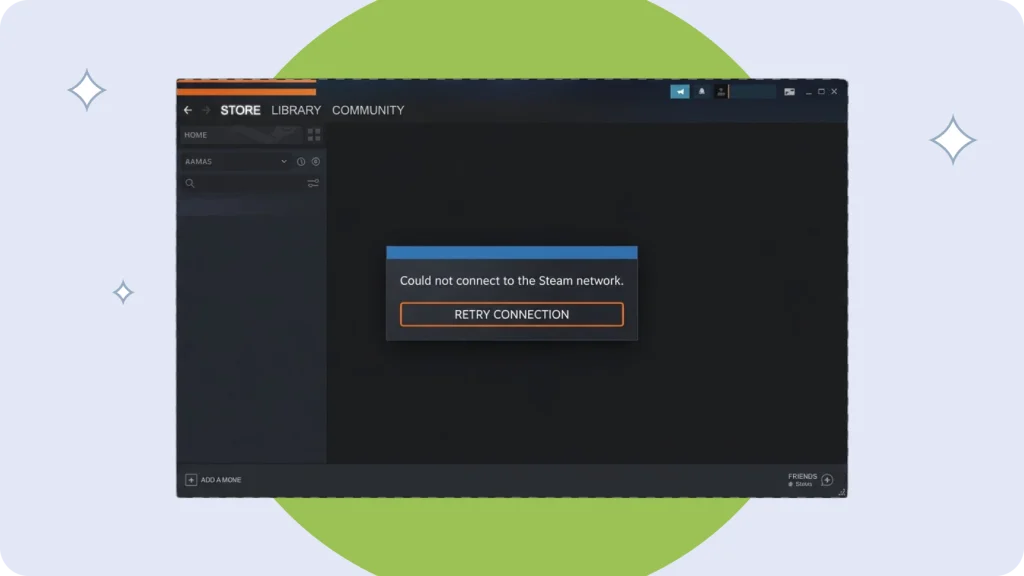
Steam is Down
When Steam is unavailable globally, it usually signals a Steam outage or server malfunction. Large-scale downtime affects many users at once. Maintenance windows, server upgrades, or sudden technical errors often trigger temporary malfunctions. Sometimes only certain regions are impacted, but even regional problems can block store access, friends lists, or cloud saves.
Steam outages are unpredictable. Your client may partially load or display “Steam server down” messages. Many panic before checking status sites, but verifying whether the outage is global saves frustration.
How to Fix:
- Monitor Steam status websites to confirm ongoing outages.
- Follow official Steam channels or social media for maintenance alerts.
- Wait. Global outages require engineers to resolve server issues.
- If your region restricts Steam, test a VPN to confirm connectivity.
- Try accessing Steam from another device or network to rule out local issues.
Steam Not Loading
Steam not loading can stem from DNS errors, network congestion, or outdated clients. Cached files, browser conflicts, or firewall rules sometimes block pages entirely. Users see the client hang at “Connecting to Steam” or incomplete libraries. ISP throttling occasionally hides content, giving the impression of a server outage. According to our data, network issues account for most slow-loading complaints.
How to Fix:
- Restart your device; a fresh boot clears temporary hitches.
- Clear Steam cache or browser cookies; old data blocks content.
- Update the Steam app; outdated clients misbehave with new servers.
- Switch networks between Wi-Fi and mobile data; network variation often helps.
- Test a VPN to stabilize connections and bypass regional blocks.
- Temporarily disable firewalls or security software to see if they interfere.
Steam Not Opening
Steam not opening usually indicates corrupted files, misconfigured settings, or OS conflicts. Updates may alter permissions or block the client from launching. Sometimes Steam refuses to start with no clear reason. Certain system security settings, outdated drivers, or missing dependencies also prevent opening.
How to Fix:
- Verify Steam client files; damaged files often prevent startup.
- Clear cache and temporary files; old data interferes with launching.
- Update your system and Steam to the latest versions.
- Restart your device; a fresh boot resets permissions and background processes.
- Use a VPN if your provider restricts connections.
- Check firewall and security software settings.
- Reinstall Steam if persistent issues remain.
Steam Keeps Crashing
Crashes occur due to insufficient memory, corrupted files, or software bugs. Background apps competing for resources often trigger sudden closures. Users report crashes mid-game, during large downloads, or even at launch. Steam bug or system conflict sometimes hard to pinpoint. According to our analysts, clearing cache and closing unnecessary apps fixes the majority of crashes.
How to Fix:
- Clear Steam cache to remove temporary files.
- Restart your device to free memory and reset processes.
- Update Steam and your OS to prevent software conflicts.
- Close resource-heavy background apps.
- Reinstall Steam if crashes persist.
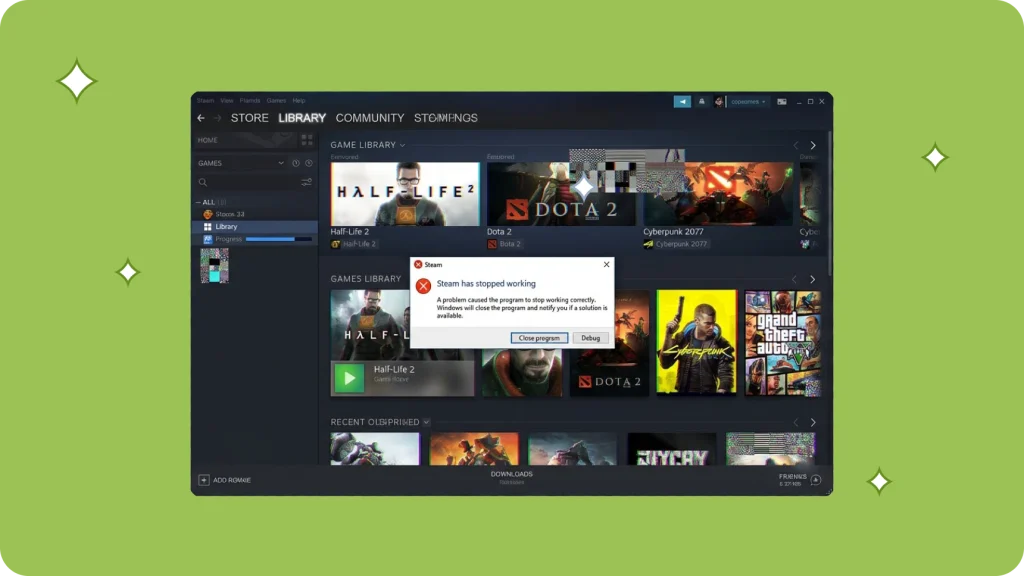
Steam Not Responding
Steam may freeze or stop responding due to temporary glitches, server issues, or overloaded devices. RAM shortages or background apps can prevent normal operation. Users notice unresponsive menus, frozen feeds, or delayed library loading. Some issues only appear on certain networks or devices.
How to Fix:
- Close all background applications to free system resources.
- Restart Steam or your browser.
- Update Steam and OS to ensure compatibility.
- Log in from another device or via VPN to check for local restrictions.
Steam Glitching
Steam glitches — missing buttons, broken feeds, or error messages — often appear after updates or server-side changes. Malfunctions disrupt gameplay, store access, or chat. Most issues resolve automatically, but repeated problems may indicate corrupted cache or Steam bugs.
How to Fix:
- Update Steam to the latest client version.
- Switch networks between Wi-Fi and mobile data.
- Log out and back in to reset temporary settings.
- Wait if the bug is global. Engineers usually fix server-side problems quickly.
- Clear client cache if glitches persist.
Steam Slow
Steam running slow? It’s often network congestion, overloaded VPNs, or outdated apps. Users notice lag when browsing libraries, downloading large updates, or hopping into multiplayer sessions. Sometimes the servers themselves are jammed, which makes the client feel unresponsive. According to our analysts, slowdowns spike during sales, major updates, or peak hours.
ISPs occasionally throttle traffic, and unstable Wi-Fi makes everything worse. We think testing connections with a VPN can reveal if the problem is local or regional, especially when Steam lags only in your area.
How to Fix
- Restart your router to refresh the connection and reduce latency spikes.
- Disable unstable or overloaded VPNs. Too many simultaneous connections can choke traffic.
- Test your network speed using online tools to ensure sufficient bandwidth.
- Clear Steam cache and cookies. Old files often interfere with smooth operation.
- Use a VPN to stabilize connections, bypass ISP throttling, and maintain speed.
- Close background apps consuming bandwidth, like streaming services or cloud backups.
Steam Not Working on Android
Android users sometimes see Steam not working due to outdated apps, corrupted cache, or device incompatibility. Some security settings or network restrictions block the app from launching after updates. Older devices, custom ROMs, or low storage often amplify the problem.
According to our data, a majority of Android issues resolve quickly with cache clearing and app updates. Testing Steam via a VPN can also help if regional blocks or ISP-level throttling prevent launch.
How to Fix Steam Not Working on Android
- Clear Steam cache to remove corrupted temporary files.
- Update the Steam app to the latest version for proper server compatibility.
- Restart your device to refresh system processes and free memory.
- Use VPN for Android to bypass regional restrictions or ISP-level blocks.
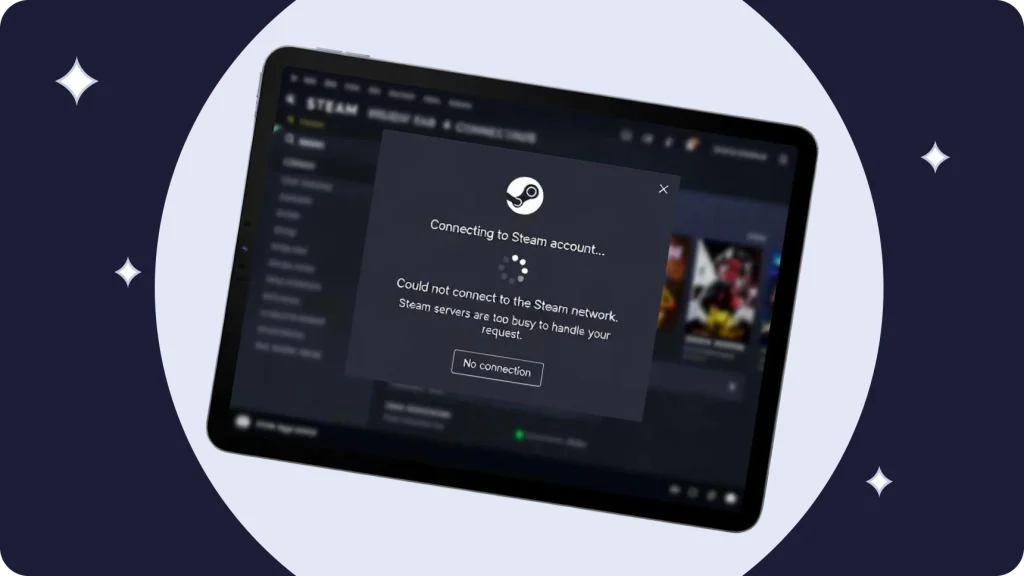
Steam Not Working on iPhone
iPhone users sometimes encounter Steam not working because of outdated iOS, corrupted app files, or network restrictions. Crashes on launch, unresponsive features, or incomplete libraries are common complaints. Temporary glitches often appear right after Steam updates or iOS upgrades. According to our analysts, most iPhone-related Steam problems resolve after clearing cache, reinstalling, or using a VPN.
How to Fix Steam Not Working on iPhone
- Delete and reinstall the Steam app to restore default files.
- Update iOS to ensure compatibility with the latest Steam version.
- Check network settings for proxies, VPN conflicts, or restricted connections.
- Use VPN for iPhone to bypass provider blocks or regional restrictions.
Conclusion
What should you do when Steam isn’t working? The very first thing you should do is to determine if the problem is with your particular hardware, or if it is a general outage affecting Steam users everywhere. Confirm that your internet connection is online, restart your router, and ensure that Steam and your PC are fully updated. VPNs can help you change the device location in addition to improving connection stability, and improving download speeds and overall connection stability, and if your device is disconnected from your ISP altogether. We think trying Download VPN, VPN for Steam, VPN for Android, or VPN for iPhone early avoids unnecessary troubleshooting.
If these steps don’t resolve the issue, it’s probably a global Steam outage. In that case, waiting is the only option — Steam engineers will fix servers. Monitoring official channels, status websites, or social media updates gives an idea of the expected downtime. According to our analysts, most global outages clear within a few hours, but regional restrictions or ISP blocks can extend it.
The fact is that Steam may be inaccessible once in awhile but usually you may only have to log out of Steam and back in, clean out your cache, and try a different network. You should also be diligent about your apps being automatically updated, your internet speed, and sometimes your VPN can help alleviate these problems before they begin. Just because Steam isn’t working like it should doesn’t mean there’s a problem with the Steam server that can’t be remedied with a little thinking and tinkering.
Frequently Asked Questions (FAQs)
-
Why is Steam down right now?
Steam could be down because of an unexpected or scheduled maintenance outages for game servers, your internet service provider, or a country that may restrict usage (I.E. China has banned Steam). Check with websites such as https://steamstat.us/ to see if steam is down all over the world. You may also want to restart your app or browser to rule out local issues.
-
What happened to Steam?
Steam sometimes stops working after updates or during maintenance. Temporary glitches can prevent the client from opening, loading libraries, or connecting to multiplayer. According to our data, these issues generally resolve themselves once server updates are complete.
-
Ways to resolve Steam not working on Android?
Clearing the Steam app’s cache on Android devices, updating the app, and restarting your Android device can all resolve various issues. If the issues persist, using a VPN for Android will help users bypass regional restrictions or ISP blocks and restore access to the platform.
-
Ways to resolve Steam not working on iPhone?
Deleting and reinstalling the Steam app, updating iOS, and checking the network settings on the iPhone device was all recommended to resolve issues for Steam not working on an iPhone device. If user had a VPN for IPhone, this is also helpful to resolve provider level blocks and improve connectivity.
-
Why is Steam not working today?
Problems with Steam today can usually be due to server overload on high traffic timeframes, outdated client versions, corrupted files, or personal device misconfigurations. But we find that just running diagnostics (Switching networks, updating software, and testing a VPN connection) often resolves most problems. If problems persist, users may benefit from clearing cache from the app or uninstalling and reinstalling the client.