

How to Turn Off VPN on Android (and When to Re-Enable It)

A VPN on your Android phone protects your data and keeps your online activities private. But there are moments when you want to disable a VPN for a while — to reach a service on your local network, test your internet connection, or speed up a quick task.
Turning off Planet VPN takes a couple of taps, and this guide walks you through every way to do it: within the app, manually in your device settings, or by uninstalling the VPN app entirely. Besides learning how to turn off VPN on Android, we’ll also cover when to switch your VPN back on, so you don’t browse unprotected for longer than you meant to.
Why You Might Want to Disable a VPN on Android
There are good reasons to turn off VPN on your phone now and then:

- Reaching local services: Some banking apps, streaming services, and websites detect VPN traffic and limit access. Disconnecting for a moment lets them see your real region.
- Connecting to devices on your home network: Printers, smart TVs, and other gadgets connected to the same network are easier to reach when the VPN is off.
- Quick speed checks: If you want to compare speeds with and without a VPN, turning it off briefly gives you a clean baseline.
- Saving battery: Any always-on connection uses a little power. Disabling the VPN can help when your battery is low.
Whatever the reason, manually disabling a VPN on Android is simple — and just as easy to reverse.
How to Turn Off VPN on Android Within the Planet VPN App
The fastest way to disconnect is right inside the app. No menus, no digging through device settings.
1. Open the VPN App
Find the Planet VPN app on your home screen or in your app drawer and tap its icon. You’ll see your current connection status and the VPN server you’re linked to.
2. Tap the Disconnect Button
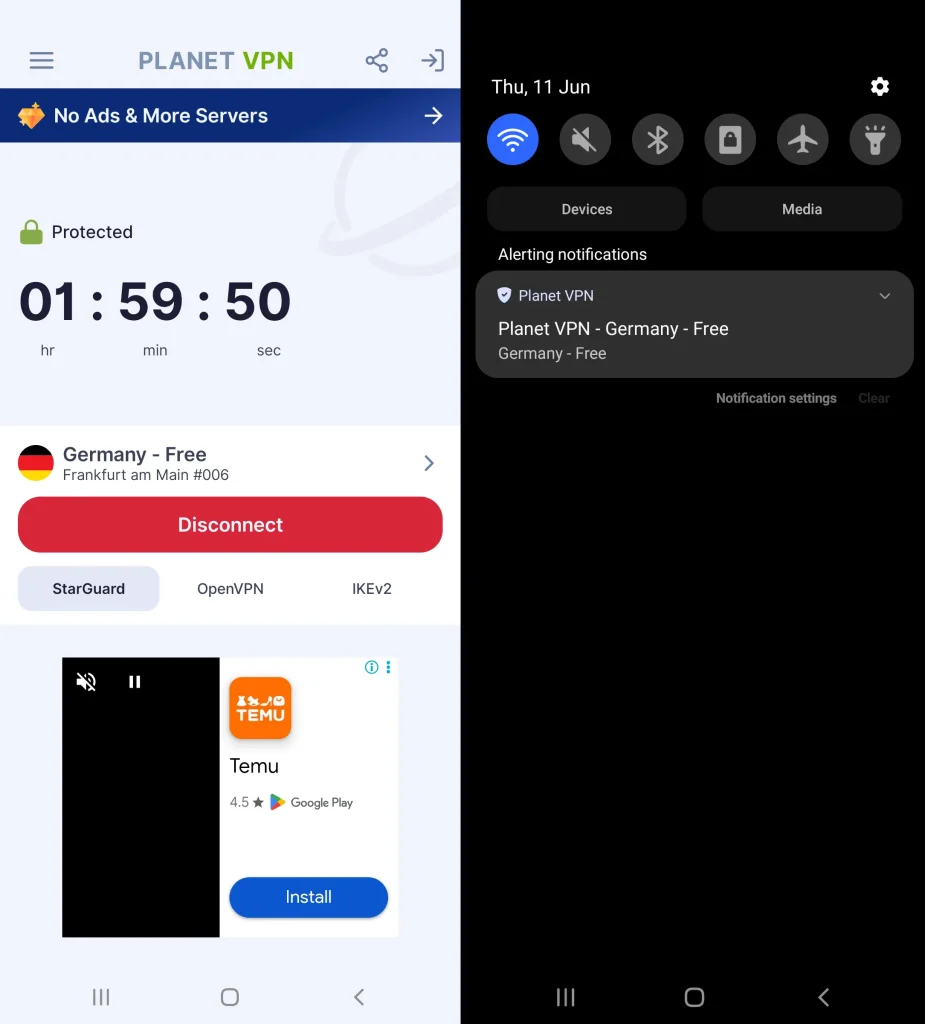
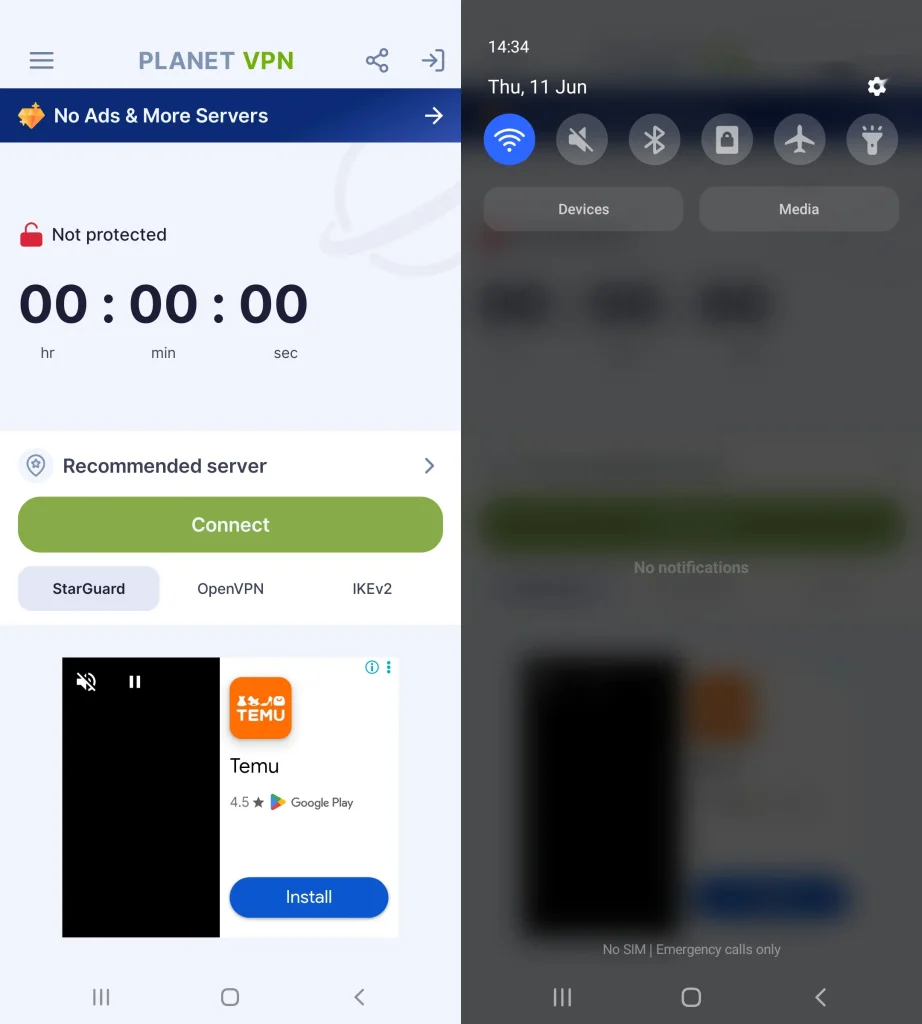
Tap the large Disconnect button on the main screen. The VPN stops right away, and your internet traffic returns to your regular connection. Everything happens within the app — you don’t need to touch anything else.
3. Check the Status Bar
After you disconnect, the VPN icon disappears from the status bar at the top of your screen. That’s your confirmation: the VPN connection is closed, and you’re now browsing through your normal Android connection. If the VPN icon is still there, open the app again and tap Disconnect once more.
Alternatives to Disabling Your VPN
Sometimes you don’t need to disable your VPN at all — a smarter setting solves the problem while keeping you protected.
Split Tunneling for Gaming or Streaming
With split tunneling, you choose which apps use the VPN and which use your direct connection. You could route a gaming or streaming app outside the tunnel for lower ping, while everything else stays protected. It’s often a better solution than turning the whole VPN off.
Switching VPN Server or Protocol
If a website uses VPN detection and blocks you, switching to a different VPN server can help before you resort to disconnecting. Changing your protocol — to a fast, modern option like WireGuard — can also improve speed for streaming and gaming without leaving you exposed.

Why Use Planet VPN on Any Device
Planet VPN keeps things simple wherever you use it. Connect or disconnect with a single tap, and manage everything from one account across your Android phone, iPhone, and even your router. The free plan gives you access to servers in key regions with no registration required, while a strict no-logs policy keeps your browsing activity and IP address private.
When you do want more — faster speeds, more locations, split tunneling for gaming or streaming — Premium adds 60+ locations across 1260+ servers, and support for up to 10 devices on one subscription. Either way, you stay in control of when your VPN is on and when it’s off. Download Planet VPN free and protect every device with a single tap.
FAQ
Should I turn off VPN on my phone?
Only when you have a clear reason, like reaching a local service or device on your network. For everyday browsing, especially on public Wi-Fi, it’s safer to keep it on.
Where are VPN settings on Android?
Open your device settings, then go to Network & Internet → VPN. There you’ll find your VPN profile and a toggle to disable the connection.
Why is VPN stuck on my phone?
A VPN can appear stuck when the app and your device settings disagree — you may have disconnected in one place while an active VPN profile lingers in the other.
Is it safe to disable my VPN?
For a short task on a trusted connection, yes. Just remember that without a VPN your traffic is unencrypted, so turn it back on before browsing on public or unfamiliar networks.