


Our VPN settings configurations are supported on the most popular Linux distributions: Ubuntu, CentOS, Debian, Fedora and Arch. Works on both 64-bit and 32-bit versions. Planet VPN offers top speed, DNS and IP leak protection, a 30-day money-back guarantee, and responsive support. All you need to fully protect your data online is to use Planet VPN on Linux.
- In order to install OpenVPN on Debian-based systems (Linux Mint, Ubuntu), you need to open a terminal with a console (from the menu in the bottom panel, or using the command line).
- Next, enter the following command into the terminal console: sudo apt-get install openvpn and press [Enter] to begin the installation of OpenVPN.

- Now DOWNLOAD one or more configuration files for OpenVPN to your PC.

- Go to the terminal console in the directory with the downloaded file. This is usually done with the command: cd ~/Downloads/

- To check if the *.ovpn file exists in the directory, enter the command: ls | grep *.ovpn
- Next, import the configuration file into OpenVPN. In the terminal console, after the name of the directory with the configuration file, enter the command, for example: sudo openvpn –config Dallas.ovpn (where “Dallas.ovpn” is the name of the configuration file saved on the computer).
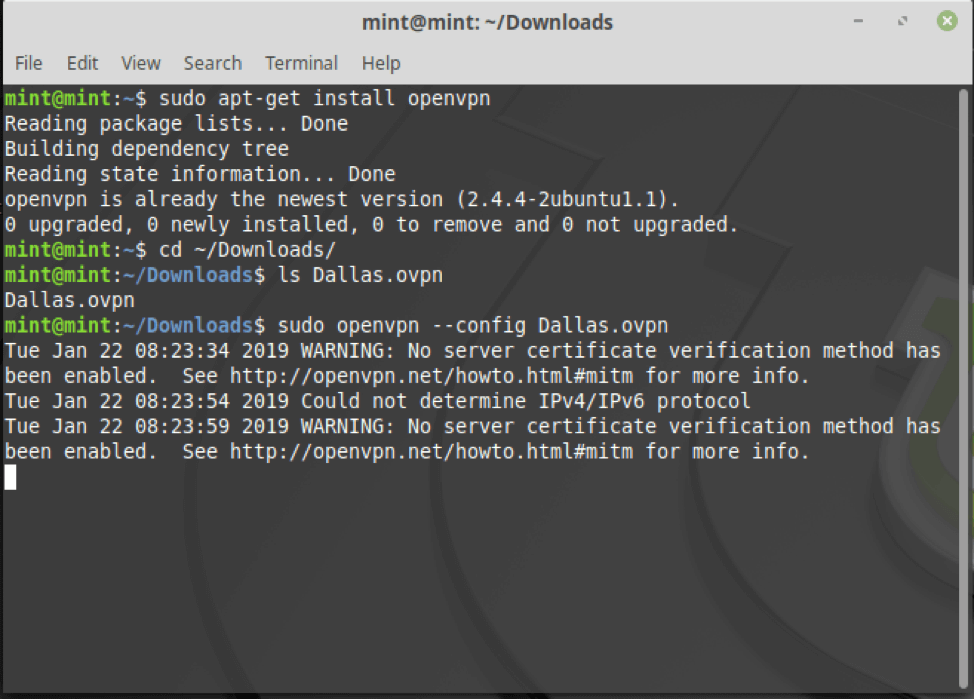
- VPN connection in Linux with Planet VPN settings installed! To stop OpenVPN, close the Terminal window, or type: sudo systemctl stop openvpn.service or sudo systemctl disable openvpn.service or sudo service openvpn stop