

Free VPN for Oculus Quest: Play Without Interruptions
Planet VPN keeps your Oculus Quest connection stable and your account secure — so you stay in the game, not troubleshooting it.
- Reduced ping spikes in VR sessions
- Account protection on public and shared networks
- Protection from network-based threats
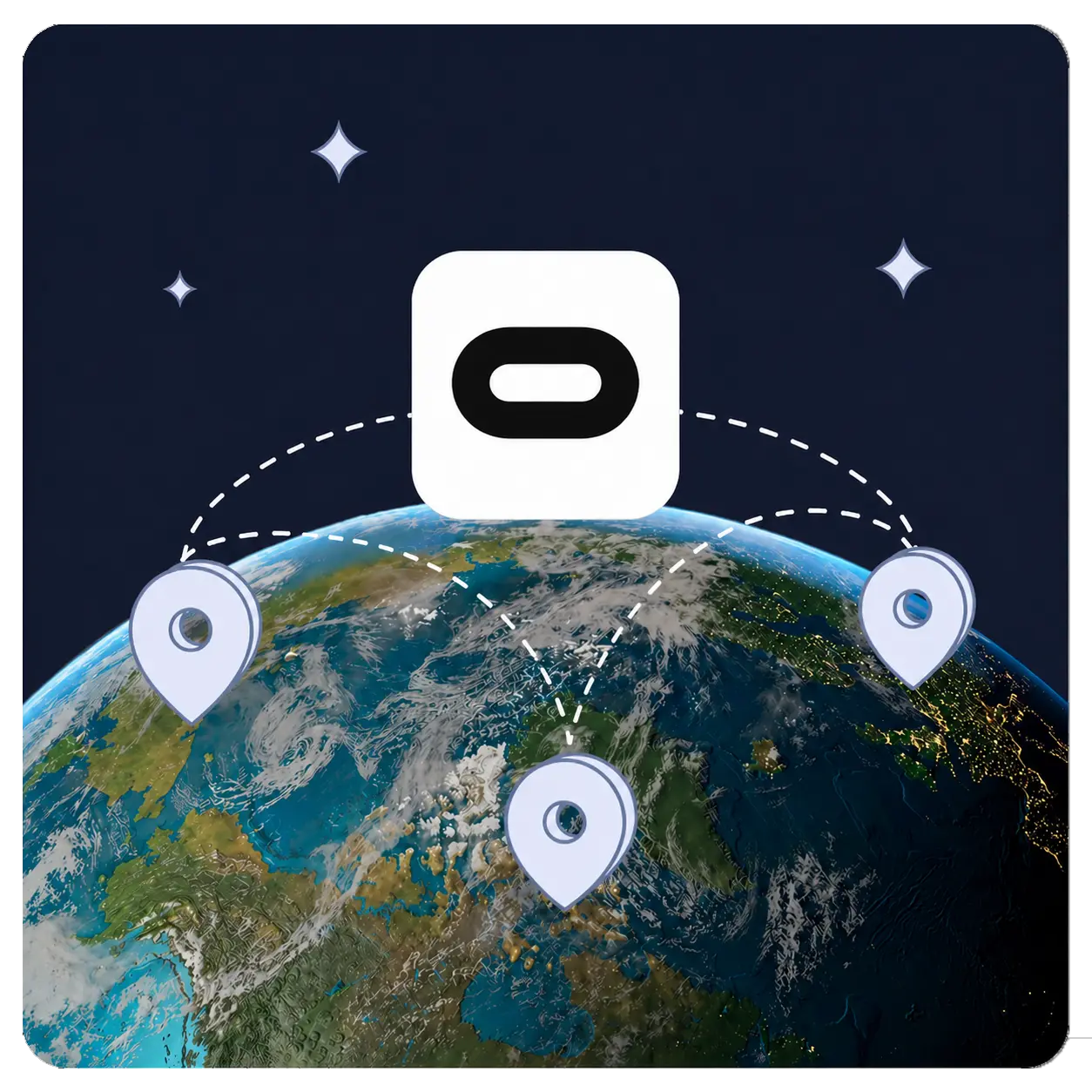
- Free servers in 5 countries, Premium in 100+
Available on All Devices and Platforms
Why Oculus Quest Players Need a VPN
Your internet speed isn’t always the problem. Often, it’s how your traffic is routed to Meta’s servers.

Stable Routing
A VPN reroutes your traffic around congested ISP nodes. In VR, every millisecond of latency affects how natural your experience feels.

Protection on Public Wi-Fi
Public networks are not secure. Planet VPN encrypts your connection and protects your Meta account wherever you play.

Access to Other Server Regions
Join friends in different regions or access content tied to specific locations by connecting to a server closer to the relevant data center.
Reduced Lag in Multiplayer
Planet VPN reduces connection instability during peak hours when network load is highest, keeping your VR sessions smoother.

ISP Throttling Prevention
Some ISPs slow down gaming and streaming traffic. Planet VPN helps keep your latency more consistent during long VR sessions.

How to Use Planet VPN on Oculus Quest
Download the app
Download the Planet VPN app from its Official Webpage.
Install the VPN
Install Planet VPN on your router or companion device following the setup guide.
Open the Oculus app
Open the Oculus app, connect to your preferred server, and start playing.
What to Know Before Using a VPN with Oculus Quest

Test Your Connection First
Before jumping into multiplayer, check your connection stability. Packet loss at the start can cause persistent issues throughout a session.

Don’t Switch Servers Mid-Session
Changing your IP mid-session may interrupt your connection. Pick one server before launching and stay on it.

Choose the Closest Region
Connect to a VPN server near Meta’s regional infrastructure. Distant servers increase latency, closer servers keep it low.

Close Background Apps
Other apps competing for bandwidth affect your VR session. Close them before connecting for the most stable experience.
Is Your Oculus Quest Lagging or Dropping Out?
Slow routing, ISP congestion, or an overloaded Wi-Fi network can turn a VR session into a choppy, disorienting experience. Frames drop, controls feel off, and multiplayer rooms become unplayable.
The experts at Planet VPN have identified the main causes of high latency, disconnects, and login issues on Oculus Quest. This page explains how a VPN helps stabilize your connection and keep your VR sessions consistent.


Which Server Region to Choose for Oculus Quest
Meta’s servers are distributed across regions, North America, Europe, Asia, and others. Connecting to the wrong region adds 80 to 150 ms to your latency and makes multiplayer sessions feel sluggish.
With Planet VPN, you can connect to a server closer to Meta’s infrastructure and maintain stable, low latency instead of unpredictable spikes.
Planet VPN Premium is a Global Network
Premium is built for users who need low latency, consistent speeds, and broad server coverage, including dedicated options for gaming and streaming.

1260 servers

Double VPN

AES 256-bit encryption

Onion over VPN for router

OpenVPN, PlanetX, StarGuard, and IKEv2 protocols

Split tunneling

DNS and IP leak prevention

Killswitch
Frequently Asked Questions (FAQs)
-
Can you get a VPN on an Oculus Quest?
Yes — Oculus Quest (now rebranded as Meta Quest) doesn’t have a built-in VPN or a native VPN app store, but you can still protect your VR headset with a VPN. There are two main ways to do it. Through your PC or phone, or through a router.
-
How to put VPN on Meta?
The straightforward way: install the VPN on your router, then connect your Meta Quest to your home network as usual. The VPN covers all devices on that network — including the headset. Here’s the general process:
- Download Planet VPN and set up your account on a desktop or mobile device.
- Follow the router setup guide to configure the VPN connection in your router settings.
- Connect your Meta Quest 2 or Meta Quest 3 to that Wi-Fi network.
From that point, your internet traffic routes through the VPN server automatically. Your IP address is masked, your connection is encrypted, and your gaming session stays private — without any extra steps inside the headset.
-
What is the best VPN for VR?
The best VPN for Meta Quest is one that keeps speeds high and lag low. Encryption adds a small overhead to any connection — the right VPN minimizes that impact so your VR experience stays smooth.
-
How to open VPN on VR?
Meta Quest headsets don’t have a VPN menu you can open directly — the VPN runs at the network level, not inside the headset. So there’s no VPN icon to tap in the Quest interface.