

How to Use a VPN: A Complete Beginner’s Guide

Not sure how to use a VPN, or whether you even need one? You’re in the right place. This guide covers everything: what a VPN does, how to connect to a VPN in four steps, and how to use a VPN on any device.
What Is a VPN and Why Do You Need One?
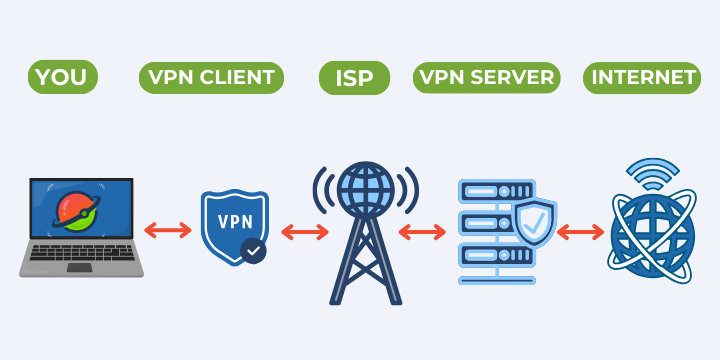
VPN stands for Virtual Private Network. A VPN works by routing your internet traffic through a secure server before it reaches its destination. Your data travels through an encrypted VPN tunnel, so outside observers, your internet provider, the owner of a public Wi-Fi network, or anyone else on the same connection, can’t see what you’re doing online.
Here’s what that means in practice:

- Your IP address stays private: The VPN hides your IP address and replaces it with the server’s address instead.
- Your connection is encrypted: VPN encryption protects your data from being intercepted on unsecured networks.
- Your browsing stays your business: VPN use keeps your activity from being logged by your internet provider.
A VPN is especially useful when you’re on public Wi-Fi, at a café, airport, or hotel, where your connection is most exposed. It’s also handy for accessing your favorite streaming services while traveling, or simply keeping your information private at home.
How to Use a VPN in 4 Simple Steps
Setting up a VPN is easier than most people expect. Here’s how to go from zero to connected.
Step 1: Choose a VPN Provider
Start by picking a VPN service you can rely on. There’s no shortage of options, but not all VPN providers offer the same level of security, transparency, or value.
When choosing a VPN provider, consider:
- Privacy policy: Does the provider log your activity?
- Encryption standards: How does the service protect your data?
- Server locations: Does it have servers where you need them?
- Free vs. paid plans: What do you actually get without paying?
- Device support: Does it work on all your devices?
Many VPN providers offer a free tier, but the terms vary significantly. Planet VPN gives you access to core features at no cost, no hidden conditions, no tricks. The free plan is genuinely free, supported by short ads rather than your data.
Step 2: Download and Install Planet VPN
Go to the Planet VPN provider’s website or your device’s app store. Download the VPN app for your platform: Windows, macOS, Android, iOS, or Linux.
Install the VPN app on your device the same way you would any other app. The process takes under a minute on most devices.
Step 3: Connect to a Server and Start Browsing
Planet VPN doesn’t require a sign-up, so you can head straight to picking the server. Select one of the 6 free server locations from the list, then tap Connect. The VPN connection is usually established within a few seconds.
That’s it. Your traffic is now encrypted, and your IP address is private. You can browse, stream, and work as normal.
How to Use Planet VPN on Any Device
Planet VPN works on all major platforms. Using a VPN on different devices follows the same basic flow, but here are a few platform-specific notes.
- Windows and macOS: Download the desktop app from the Planet VPN website. Install it and connect. The app runs in the background and reconnects automatically if your connection drops.
- Android and iOS: Install the Planet VPN app from Google Play or the App Store. Mobile setup is identical to desktop: download, pick a server, and connect. The app also supports always-on VPN in your device settings for continuous protection.
- Linux: You can use a VPN on Linux via the Planet VPN app or by configuring a VPN connection manually through your network settings. The app supports the most popular Linux distributions.
- Router: Setting up a VPN on your router protects every device on your network at once, including smart TVs and consoles that don’t support VPN apps directly.
How to Know If Your VPN Is Working
Once you connect to a VPN server, check that it’s actually working:
- Visit IP check tool.
- Check the IP address shown. It should match the server location you selected. Not your real location.
- Run a DNS leak test on the same site to confirm your DNS requests aren’t leaking outside the VPN tunnel.
If your real IP address still shows, try switching servers or restarting the app.
What Can You Do With a VPN?
The benefits of a VPN go beyond privacy. Here’s what you can do with a VPN connection day to day:
- Stay secure on public Wi-Fi: A VPN encrypts your connection on open networks, so your passwords and personal data stay protected.
- Keep your browsing private: VPN use prevents your internet provider from building a profile of your activity.
- Access your favorite content while traveling: Connect to a server in your home country to reach services that might not be available in your current location.
- Work remotely without worry: A VPN connection keeps your work traffic secure, whether you’re at home or in a hotel.
- Stream without interruptions: Planet VPN’s servers are optimized for stable connections, good enough for video streaming, online gaming, and remote work.
Planet VPN’s Key Features
Planet VPN combines reliable protection with a straightforward experience. Here’s what’s included:
- Reliable encryption: Planet VPN encrypts your traffic using the AES-256 encryption protocol. Your data is protected between your device and the VPN server on every connection.
- Kill Switch: If your VPN connection drops unexpectedly, the Kill Switch cuts your internet access immediately. Nothing leaks before the VPN reconnects.
- No-log policy: Planet VPN doesn’t store records of your browsing activity. What you do online stays private.
- VPN protocols: VPN protocols determine how your data is encrypted and sent. Some prioritize speed, others favor strong security or stable connections. Planet VPN supports multiple protocols, including OpenVPN, IKEv2, and StarGuard, so you can switch based on what you need.
- Double VPN: Double VPN routes your traffic through two servers instead of one, an extra layer of protection for situations where privacy matters most.
- Split tunneling: Choose which apps use the VPN and which connect directly. Useful when you want your streaming to run via the VPN but your banking app to connect normally.
- Advanced VPN features: Planet VPN includes Automatic reconnection and customizable system configuration, all designed to work without any technical setup on your part.
Choosing the Right VPN Server
With dozens of server locations available, it helps to know how to select a VPN server that suits your needs.
- For speed: Connect to the server closest to your physical location. Less distance usually means lower latency and faster speeds.
- For a specific region: Select a VPN location in the country where the content or service you want to reach is based.
- For privacy: Any server works. Your IP address and activity are protected regardless of which VPN server you connect to.
Is Using a VPN Legal?
In most countries, VPN use is legal. VPNs are widely used by individuals and businesses alike for privacy, security, and remote work.
That said, laws vary by country. A small number of countries restrict or regulate VPN usage. Check the rules in your region if you’re unsure.
Planet VPN is a personal VPN service designed for everyday privacy and security. It’s not intended for any activity that violates local laws.
Why Pick Planet VPN?
If you’re looking for a VPN that’s honest about what it offers, Planet VPN is a solid choice, and one of the easiest VPNs to use.
A modern VPN should do three things well: protect your connection, stay out of your way, and be upfront about what’s free and what isn’t. Planet VPN can help with all three.

Download the VPN app and start your VPN with one tap. No manual configuration, no reading through VPN settings guides. VPN access is ready in under a minute on any device.
FAQ
Keeping your VPN on continuously gives you the most consistent protection, especially on networks you don’t control. That said, you can turn it on and off as needed. Some users run it full-time; others switch it on for public Wi-Fi or sensitive tasks. It’s your choice.
A VPN adds a small amount of overhead because your traffic travels through an extra server. In practice, a well-optimized VPN service keeps that impact minimal. Planet VPN is built for stable performance, sufficient for video streaming, online gaming, and remote work without noticeable slowdown.
Yes, and Planet VPN is one of the more transparent free options available. Free VPNs vary a lot in quality. Some free VPN providers cover their costs by collecting and selling user data. Planet VPN has a no-logs policy and uses short ads instead, so your data is never part of the equation. Free VPNs like Planet VPN that are upfront about their model are worth considering before paying for a subscription.
A VPN hides your IP address, the identifier tied to your real location. Websites and services see the VPN server’s IP address instead of yours. This makes it harder to pinpoint your location based on your connection alone. Note that other signals (like a logged-in account) can still reveal your identity independent of the VPN.
Planet VPN supports multiple devices under one account. Check the current plan details in the app or on the Planet VPN website for the exact device limit on your plan.