Discord Not Working: What’s Going On and What to Do
Discord rarely stops working on its own. Most users have experienced sudden app failures, such as not loading or crashing without warning. Common causes include internet service providers (ISPs) or local issues like regional restrictions.
Some ISPs or local networks may block or slow down Discord traffic, causing the application to malfunction. An easy test: connect via a VPN to a different region to check for network issues while maintaining security and access. If Discord runs as expected, the ISP is the problem.
Why Is Discord Not Working?
When users report that Discord isn’t working, it usually means the client can’t reach Discord’s servers. There are many possible reasons for this, such as corrupted files or unstable networks.
Common causes include:
- Outdated versions of the app
- Temporary Discord server outages
- Unstable or weak internet connection
- Firewall or DNS configurations blocking Discord
- Damaged local cache or configuration files
Troubleshooting Discord
Let’s start off simple. In order to determine whether your internet is functioning or not, open a new website. If everything looks normal, restart Discord. Often, temporary bugs will go away when the app is restarted.
Then proceed to check your firewall or anti-virus settings. Firewalls and anti-virus protections sometimes zone Discord out. Shut those down temporarily. If Discord won’t load properly at this point, the solution may be a VPN. You can try routing your request through another region or have it go through a different network.
If that doesn’t work, the most practical step might be to reinstall Discord to replace any corrupted component in your files. If that doesn’t work for you either, skip this step; it might not be your systems fault.
Is Discord Down?
Sometimes the error could be in server issues. At times Discord servers can go down for a variety of reasons that can affect users worldwide, or just within a region. If Discord has downtime, or is under maintenance, it is quite possible that even the site itself won’t work. During this time, you may attempt to uninstall or restart your app, but it won’t change the fact that the issue is with the Discord infrastructure.
You can confirm an outage by:
- Visiting status.discord.com
- Checking user posts on Twitter or Reddit
- Asking others if their Discord works normally
How to Fix:
- This is pretty much the only choice available when there is a confirmed outage is to wait for a while until the Discord crew is done with their repair work. However, you can perform little actions to verify whether your internet connection is functional. Such operations include using a VPN to connect, rebooting your modem, or employing a public DNS like Google DNS (8.8.8.8).
- Moreover, keep the automatic updates turned on. Your app will be the first one to reconnect when the servers make their comeback. If the situation is that Discord is down globally, then it will only be a matter of time until it’s fixed.
Discord Failing to Launch
At times, Discord completely fails to load when starting up, or it just continues to spin. These issues frequently arise when Discord has been updated or the cache has become corrupted, or a plugin, install, browser extensions, or network filter on your connection are blocking Discord’s domains.
How to Fix:
- Start by clearing the app cache.
- For Windows: click Discord Cache and delete all files.
- On mobile devices, open your settings and go to Settings > Apps > Discord > then Storage > tap Clear cache. If that doesn’t work, attempt to access Discord through a different device or browser. Know that a lot of loading loop problems are just outdated app versions too, so make sure your Discord app is updated. Sometimes ISPs will block access altogether, and if so a VPN will help allow those resources. You may also want to consider looking at either the community threads or Discord website’s messages and reports, to see if it is just a temporary problem and is ongoing through a lot of other users already.
Discord Not opening
In some instances, Discord will not open at all. Sometimes it is simply trying to open still after you have signed out or closed out of it and it crashed/disconnected from the previous session. The startup files fail as well, software conflicts from your antivirus or game launcher (possibly Steams or NVIDIA overlay). All of these can be a headache for any new session of Discord to even want to open.
How to Fix:
- Open Task Manager and end all Discord processes. Then, open the app as an administrator. If it still doesn’t work, turn off any startup apps that might be causing problems.
- If something goes wrong, you can do a full reinstall. This replaces any damaged files and resets the installation. If the desktop version keeps failing, try using Discord in your browser. If that works, then the local app was the issue. If both versions don’t work, reset the DNS or use a VPN to test a direct route to Discord’s servers.
Discord Keeps Crashing
A software conflict or bug may be responsible for Discord crashes. Outdated drivers, GPU acceleration issues, or third-party overlays can also cause instability. Compatibility problems may also occur in the operating system if it has not been recently updated and/or if there are corrupted cache files.
How to Fix:
- To do this, go to Settings and then Advanced when prompted. From there, you can choose to turn off Hardware Acceleration.
- Remove any overlays or updates for plugins like StreamKit. You should check for Discord or any operating system updates as well. If the internet is slow and constantly disconnects, consider using a VPN.
Discord Not Responding
Discord freezing mid-chat or refusing to open usually signals that the system’s resources are stretched thin. High RAM use, cluttered temporary files, or an overactive antivirus program can choke its performance. Sometimes, the app stalls not because it’s broken, but because the machine is too busy juggling background processes.
How to Fix:
- To fix it, shut the app from Task Manager and restart it clean. Disable programs that auto-launch when the computer boots — they often hog memory for no reason. Clear cache and local Discord data; old junk files can mess with responsiveness. Running Windows in Safe Mode helps track what’s actually causing the conflict.
- A quick restart often resets memory leaks and clears system drag. If your internet connection keeps shifting between Wi-Fi nodes or unstable networks, Discord may appear frozen when it’s just waiting for data. Keeping traffic steady through a VPN can smooth the connection and stop those half-stuck moments.
Discord Slow
When Discord drags — ping delays, voice cracks, file uploads stuck halfway — the cause usually sits with the network, not the app. Congestion hits hardest during peak hours, when thousands of connections compete for the same lanes. Bandwidth caps from an ISP or sloppy routing paths can stretch latency far beyond normal.
This slowdown often multiplies if background apps chew through bandwidth. Streaming platforms, cloud sync tools, or giant game updates can drain throughput before Discord even gets a chance.
How to Fix:
- The fix isn’t fancy. Pause heavy downloads. Kill video streams running idle. Switching to a wired line can stabilize packet flow, removing Wi-Fi interference from the equation. If your provider throttles traffic, a VPN might reroute it through faster, less crowded servers.
- Sometimes the slowdown just fades on its own. When maintenance or routing spikes pass, Discord’s pace returns to normal — like the network took a deep breath and let go.
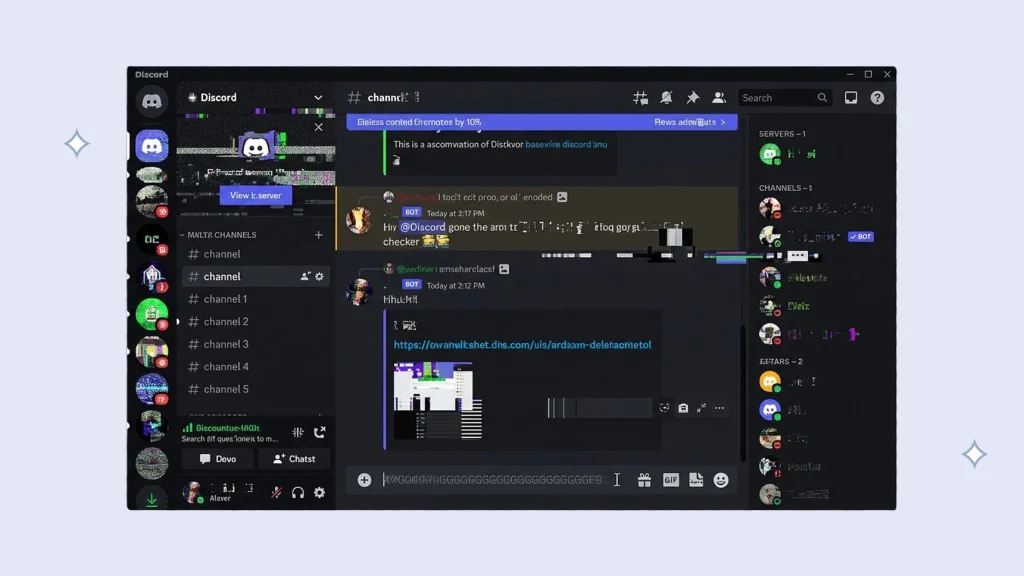
Discord Glitching
Rendering glitches — missing channels, broken visuals, or half-loaded messages — usually trace back to Discord’s UI layer or GPU rendering. These bugs pop up after a system update or when the graphics driver lags behind.
How to Fix
- Disabling hardware acceleration often clears the problem. Signing out and back in forces a UI reload. Cleaning cached files and local storage helps the client rebuild corrupted visuals. Installing the newest build is essential since many fixes roll out quietly through patches.
- If the screen keeps breaking, test another network or connect through a VPN. Most visual issues clear up on their own after the next patch cycle.
Discord Not Working on Android
On Android, Discord stops responding for a handful of reasons: corrupted cache, stale app files, strict battery optimizers, or network blocks. Some ISPs filter the ports Discord needs, cutting off voice or message sync.
How to Fix
- The fix starts with App Info → Storage. Clear both cache and data. Disable Battery Saver, then update via Google Play.
- Restarting the phone often resets background permissions. If it still fails, connect through a VPN to bypass regional or provider blocks. A clean reinstall works when old configuration files conflict.
Discord Not Working on iPhone
On iPhone, Discord’s failures often come down to permission conflicts or spotty Wi-Fi. Privacy settings, Low Data Mode, or Screen Time can quietly choke parts of the app. Outdated builds or an iCloud sync error can also stall it.
How to Fix
- Go to the App Store for updates, restart the device, and check that all permissions are active in Settings → Discord. Turn off Low Data Mode and, if Wi-Fi drops, try mobile data. A VPN can help where regional filtering limits access.
- If none of this works, reset network settings under Settings → General → Transfer or Reset → Reset Network Settings.
When Discord Stopped Working — Final Checks
Before blaming the platform, verify local conditions. Many so-called outages come from basic connectivity failures.
Test your Wi-Fi or data by opening another site. Check Discord’s status page for real-time updates. Switch to a different network or use a VPN to test regional routing. Reinstall the app if files seem outdated. Restart both router and device to rebuild connections.
If nothing changes, the outage is probably on Discord’s side — server maintenance, patch rollout, or internal sync delay. All that’s left is to wait it out.
Conclusion
When Discord breaks, frustration spikes fast. Gamers, streamers, remote teams — all depend on real-time sync. Yet most failures are brief and fixable.
Start with simple checks. Update, clear cache, confirm network quality. If your ISP throttles Discord, a VPN can reopen the pipe. The platform’s infrastructure demands constant maintenance, so minor downtime isn’t rare. Patience usually wins.
Persistent issues? A stable VPN maintains access and privacy, no matter the region. Stay online, stay steady, keep communication running.orking is not tied to your country or provider. Stable connectivity, media delivery, and uninterrupted messaging often return immediately after proper VPN configuration.
Frequently Asked Questions (FAQs)
-
Why is my Discord not working right now?
Discord could be in maintenance or facing an outage. Check its status page. If others connect and you can’t, restart the router or try a VPN.
-
What happened to Discord today?
Regional or global outages occur from time to time. If Discord stopped suddenly, it’s likely temporary.
-
How do I fix Discord not loading?
Clear cache, update the client, and test with a VPN. If the app still fails, your ISP might be blocking it.
-
Why is Discord not responding on my PC?
Too many background tasks, corrupted cache, or low memory can freeze it. End Discord in Task Manager and reopen.
-
What’s wrong with Discord mobile?
If it fails on Android or iPhone, clear cache, update, and reboot. If that fails, use a VPN to bypass blocked connections.
