
Users often remove the Planet VPN app and expect browser settings to revert. They do not. Uninstalling the program leaves Yahoo configured as the default search engine in Chrome, so manual correction stays required.
During installation on Windows, Planet VPN may prompt users to assign Yahoo as the default search provider in Google Chrome. Many accept without much thought, honestly it happens. If you now want another engine, or just want Yahoo gone, follow the steps below to change the setting directly in Chrome.
Option 1: Change Your Default Search Engine in Chrome
This method stops Yahoo from handling searches without deleting it from the browser list. Quick fix, minimal disruption.

- Open Google Chrome on your device
- Click the three-dot menu in the top right corner, then enter Settings
- Use the left sidebar, select Search engine
- Find the field labeled “Search engine used in the address bar,” open the dropdown menu
- Choose a different provider such as Google, Bing, or DuckDuckGo
Chrome applies the change instantly, no restart, nothing extra. Yahoo stops handling queries from the address bar, just like that.
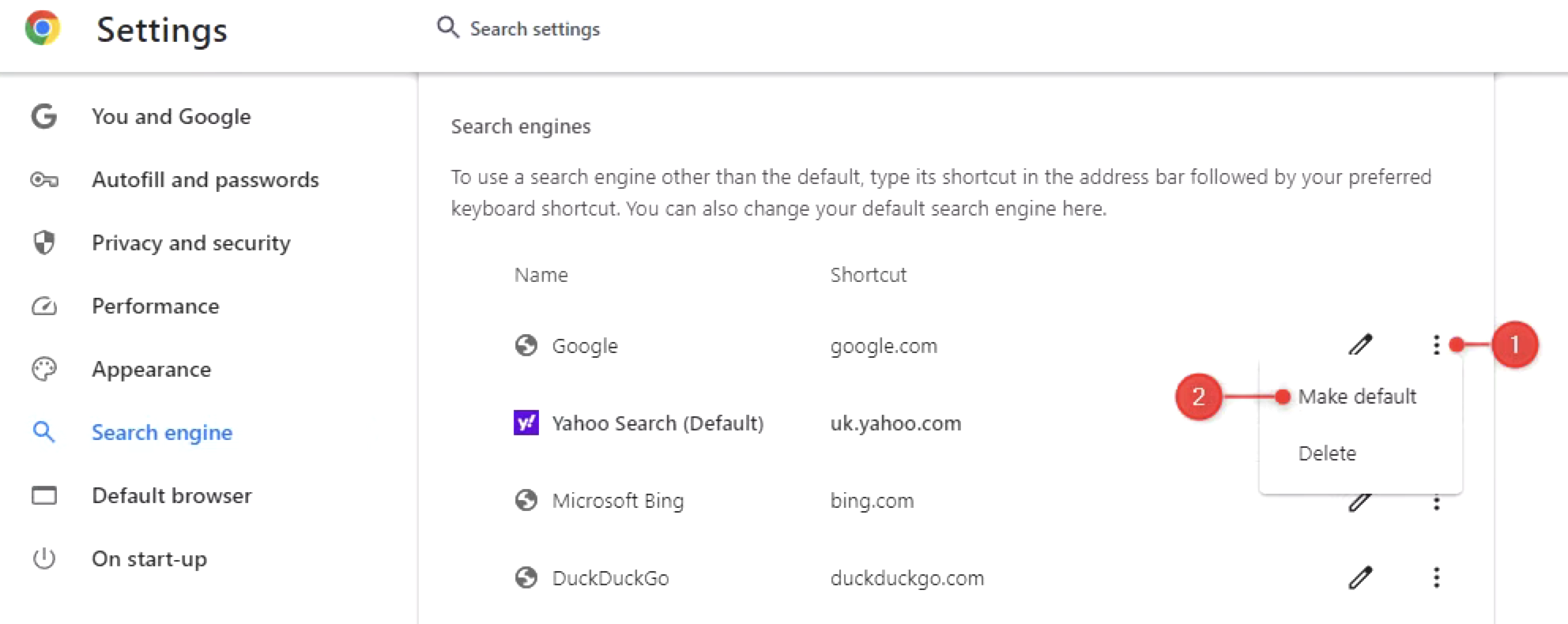
Option 2: Fully Remove Yahoo from Chrome
- Open Chrome Settings, then move to Search engine, then Manage search engines and site search. Straight path, no detours.
- Set another engine as default first, otherwise Chrome blocks removal flow, small but annoying detail.
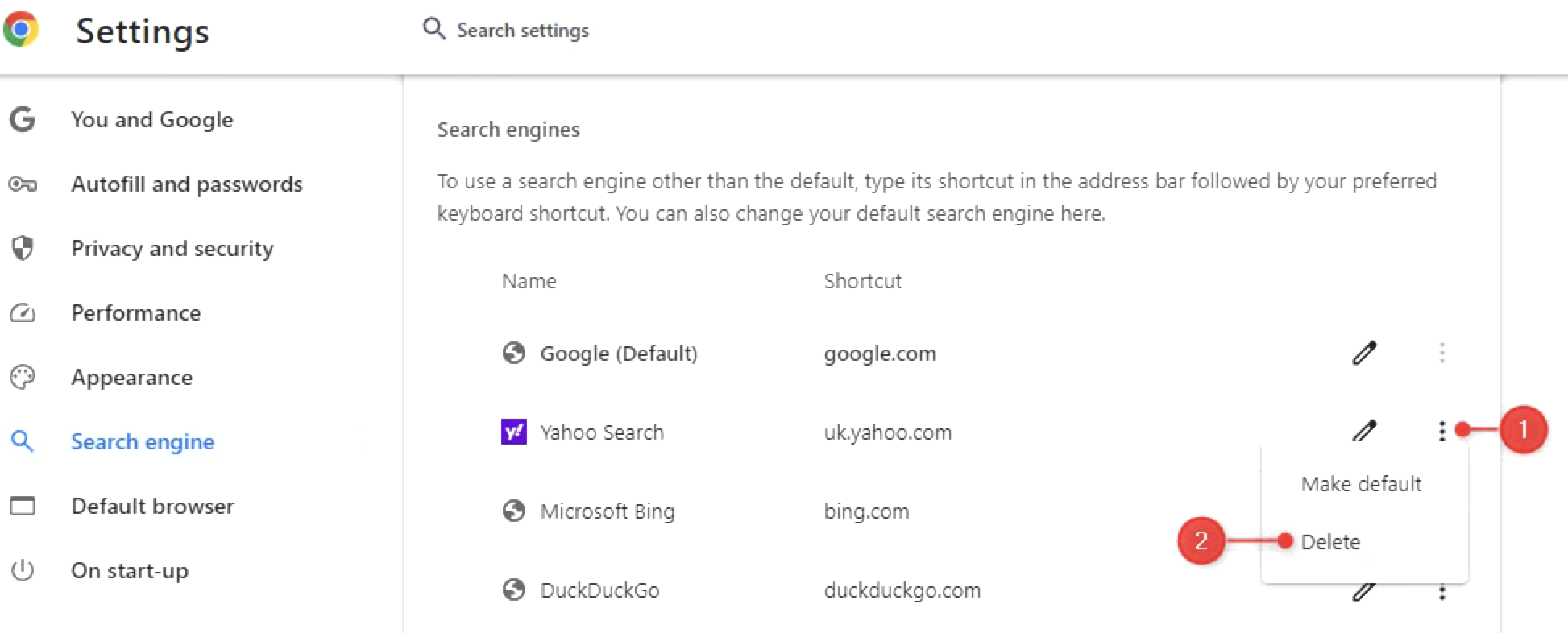
- Scroll further and find Yahoo. It usually sits in the same section, added during installation.
- Click the three dots next to Yahoo, then choose Delete. This action clears the extra search entry linked to the earlier setup with Yahoo.
Option 3: Remove the Yahoo Extension via the Windows Registry
You can remove the Yahoo-related component at system level through the Windows Registry. This step targets the remaining configuration tied to the extension. Proceed with care, mistakes here can break system behavior.
Caution: Incorrect registry edits may cause system issues. Follow each step exactly, no shortcuts.
- Press Windows + R, type regedit, then hit Enter to open the Registry Editor.
- Move to this path: Computer\HKEY_CURRENT_USER\Software\Planet VPN\PlanetVPN\PLUPDATE
- Locate the PLUPDATE folder, right-click it, then choose Delete.
- Confirm the action when prompted.
This action clears the registry entry linked to the Yahoo extension.

Option 4: Disable the plupdate Service Autostart (Important!)
Changing the search engine or removing the extension does not fully stop system interference. A background task named plupdate may still execute on startup and reapply Yahoo settings, which creates repeat overrides, annoying loop.
The fix sits in startup control. Disable the task directly in Task Manager.
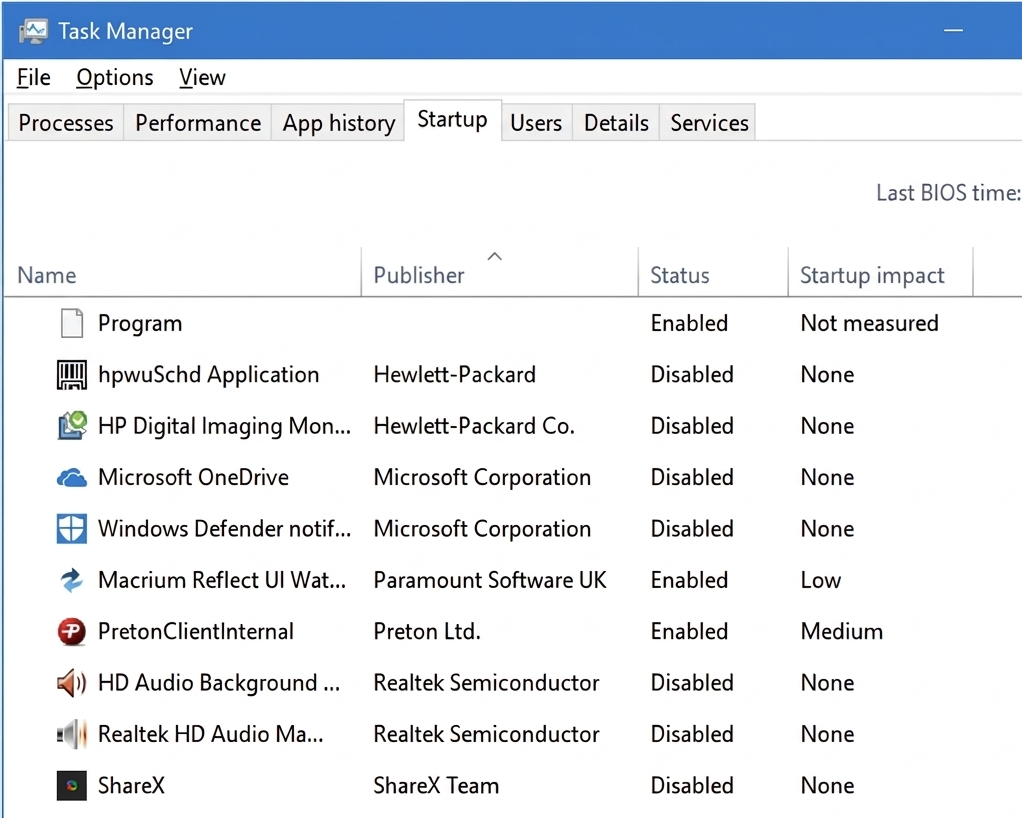
- Press Ctrl + Shift + Esc to open Task Manager apps tab on Windows 11, or Startup tab on Windows 10
- Locate plupdate in the list
- Right-click, then select Disable
Once you disable it, the system stops launching plupdate at boot. Your selected search engine stays unchanged. No silent resets.
Summary
Open Chrome settings and go to “Manage search engines.” Choose a different provider and assign it as default, standard route, nothing exotic. Check Task Manager next. Locate the plupdate service and disable its autostart, otherwise the system may reset your search preference back to Yahoo without warning.
