

How to Perform a Chrome Virus Scan

If you use Google Chrome as your primary web browser, you may have wondered at some point whether it can protect you from malware and online threats.
Chrome does include built-in security features, but understanding how to use them and knowing their limits is essential for keeping your PC and browsing experience safe.
This guide walks you through everything you need to know about Chrome’s virus scan capabilities, how to clean up your browser, and how to protect yourself from common browser security threats.

Does Chrome Have a Virus Scan?
Google Chrome does not have a traditional virus scan that checks your device for existing infections. It is important to clarify this because many websites and pop-ups falsely claim that Chrome has detected a virus on your computer; these are scams.
Chrome will never perform a full scan of your files or display alarming virus warnings in a pop-up window. If you see one, ignore it and close the tab. What Chrome does have is Safe Browsing, a built-in security feature that works proactively while you browse the web.
Safe Browsing warns you before you visit dangerous sites, click on phishing links, or download a file flagged as malicious or unwanted software. It operates in the background and is fundamentally different from a device-level antivirus scan.
It is also worth noting that Google discontinued the Chrome Cleanup Tool in March 2023, starting with Chrome 111. This tool previously allowed Windows users to scan for and remove unwanted software directly from their browser settings.
Google removed it because Safe Browsing and improvements to the Chrome Web Store review process had made it largely redundant; fewer than 1% of scans were detecting anything by the time it was retired.
As a result, Chrome no longer offers any built-in option to scan your device for existing malware. Safe Browsing remains active and provides solid protection against threats encountered while browsing, but it does not scan files already on your operating system or provide real-time antivirus coverage.
For complete protection, you will need dedicated antivirus software alongside your Chrome browser. On Windows, this can be Windows Defender; on Android devices, Google Play Protect fills a similar role.
How To Clean Up Google Chrome
If you suspect your Chrome browser has been infected with malware, is behaving strangely, or is showing unwanted pop-ups and warnings, you can take several steps to clean it up. Here is how to restore a safe browsing experience.
1. Restore Settings to Their Original Defaults
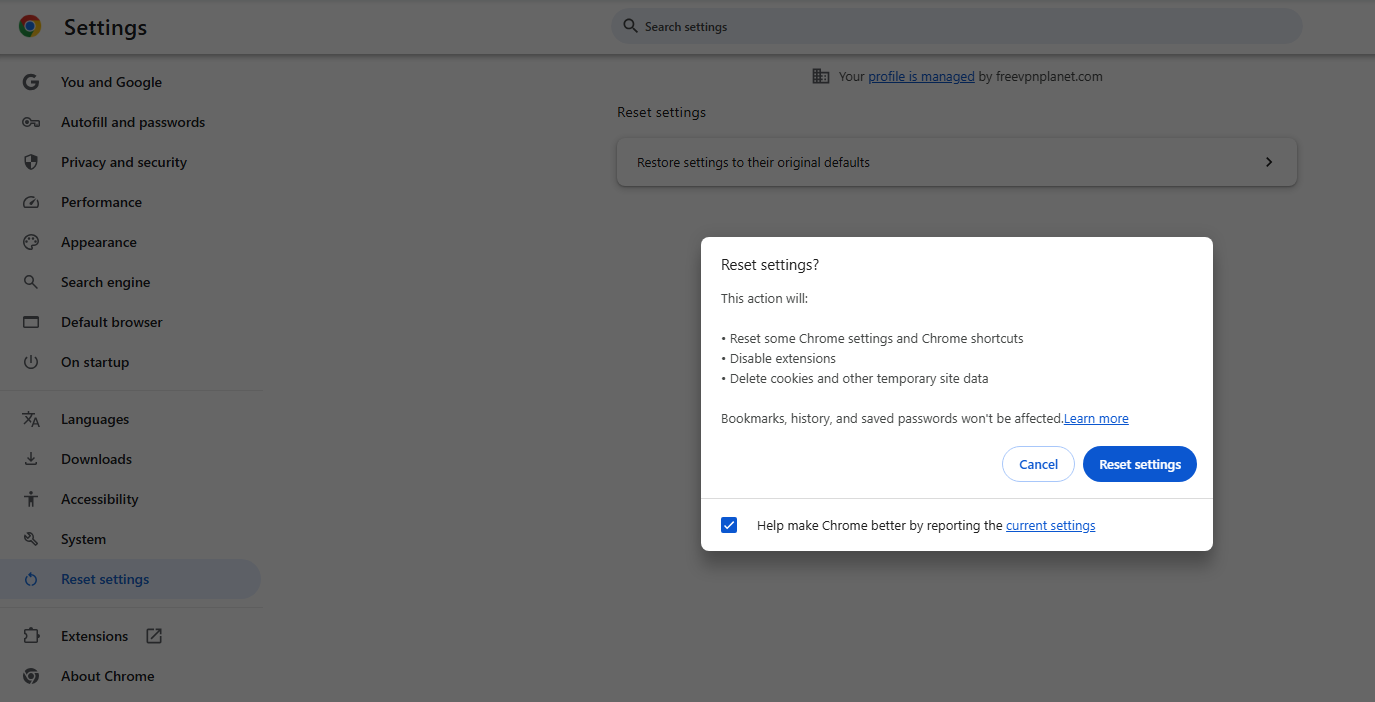
Resetting Chrome’s settings page to its original defaults is one of the most effective ways to remove harmful changes made by malware or adware. This step will:
- Disable extensions that may have been installed without your knowledge
- Reset your homepage, new tab page, and default search engine
- Clear any pinned tabs that were added by unwanted software
- Restore browser settings to factory defaults
To reset Chrome to its original defaults:
- Open Chrome and click the three-dot menu in the top-right corner
- Go to Settings > Advanced > Reset and clean up
- Click Restore settings to their original defaults
- Confirm by clicking Reset settings
Note: This will not delete your bookmarks, history, or saved passwords. However, it will disable all extensions and clear any cookie-based login sessions.
2. Clear Browsing Data & Cache
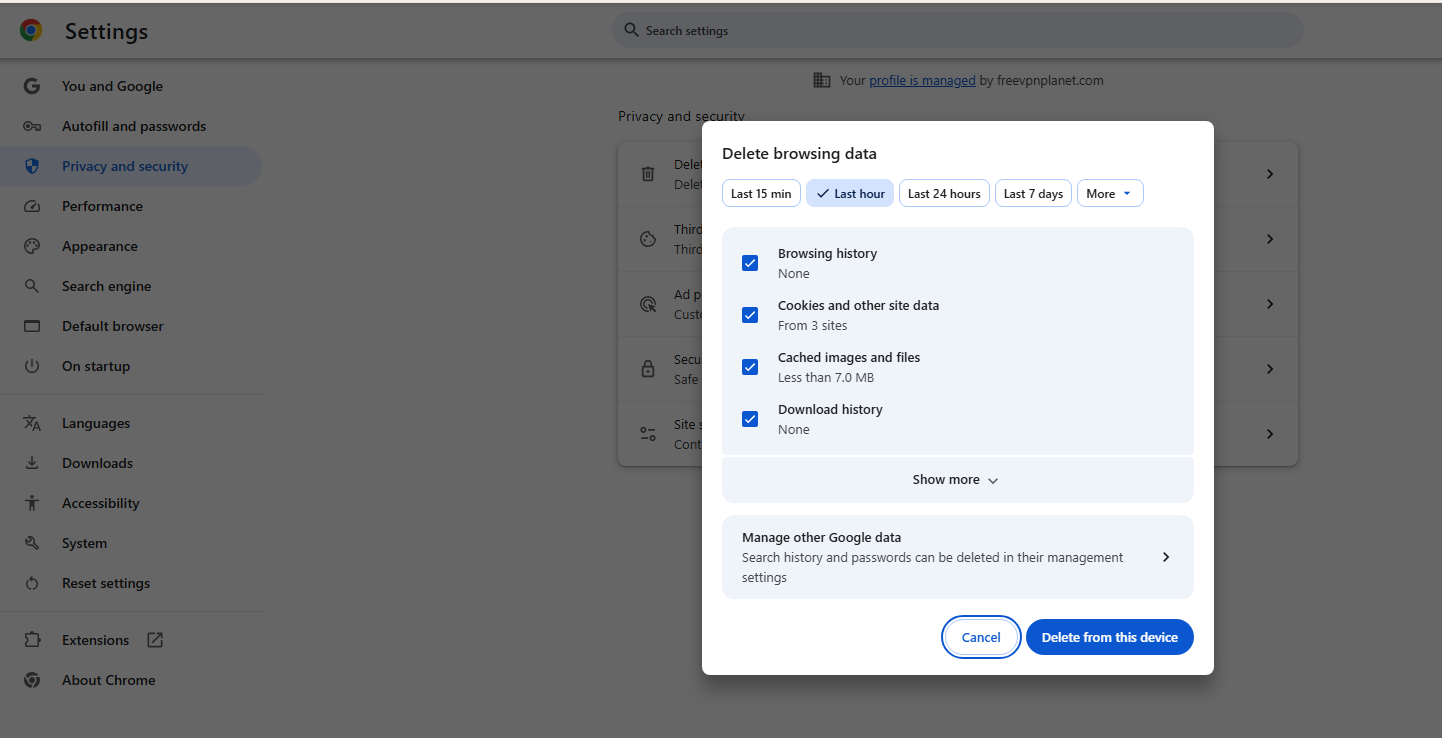
Clearing your browsing data and cache removes stored website data, cookies, and cached files that could contain malicious code or tracking scripts. This is an important step if you believe a website may have infected your browser or if you are experiencing unusual browser behavior.
To clear your browsing data and cache:
- Open Chrome and click the three-dot menu
- Go to Settings > Privacy and security > Clear browsing data
- Select a time range — choose All time for a thorough clean
- Check Browsing history, cookies, and other site data, and Cached images and files
- Click Clear data to begin scanning and removing stored information
Clearing your cache and cookies will log you out of most websites. It is a good idea to verify that you remember your passwords before taking this step. For added safety, consider using a password manager to store your credentials securely.
3. Use External Malware Removal Tools
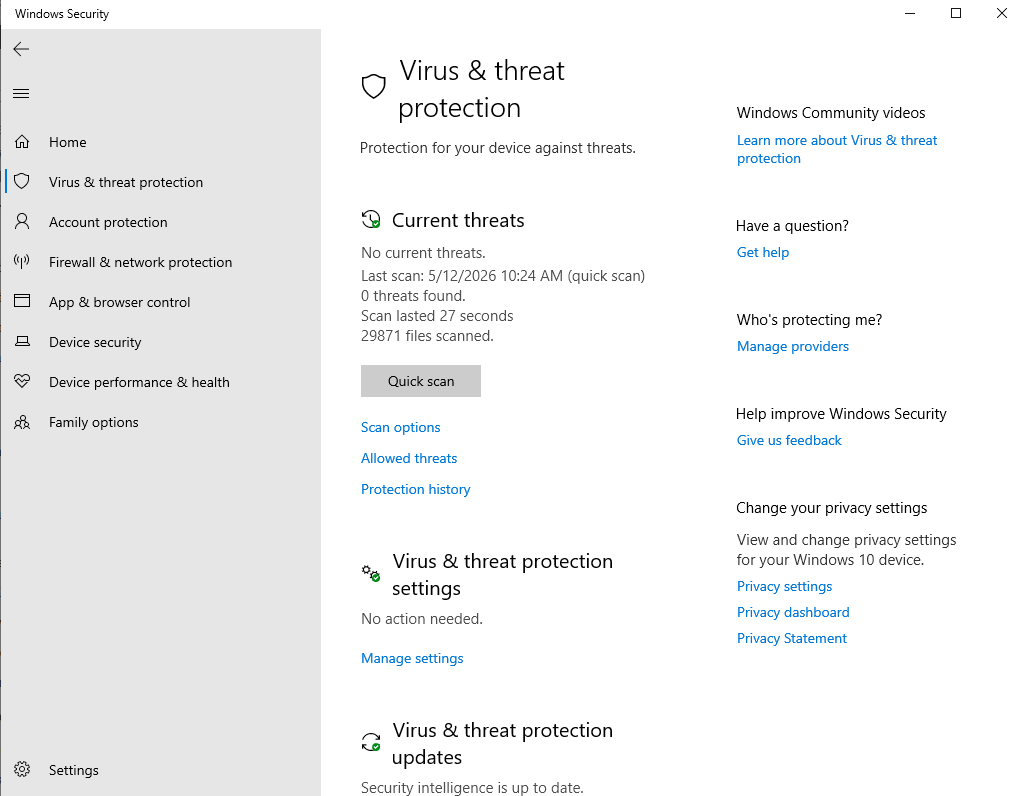
Chrome’s built-in security features are useful, but they are not always enough to fully detect or remove malware from your system. If your device is infected with malicious software or you are seeing persistent browser issues, you should use a dedicated third-party antivirus or security software to perform a deeper scan.
Here are some recommended approaches:
- Run a full system scan with reputable antivirus software such as Windows Defender to check files for viruses and malicious programs
- Download a trusted malicious software removal tool from a reputable source — always verify the source before you download a file to avoid inadvertently installing more malware
- Consider running more than one security software scan, as different tools may detect different types of threats
Third-party tools are especially important for detecting adware, spyware, and other malicious programs that Chrome’s built-in scanner might miss. Always keep your antivirus software up to date to ensure it can detect the latest threats.
4. Check for Harmful Extensions
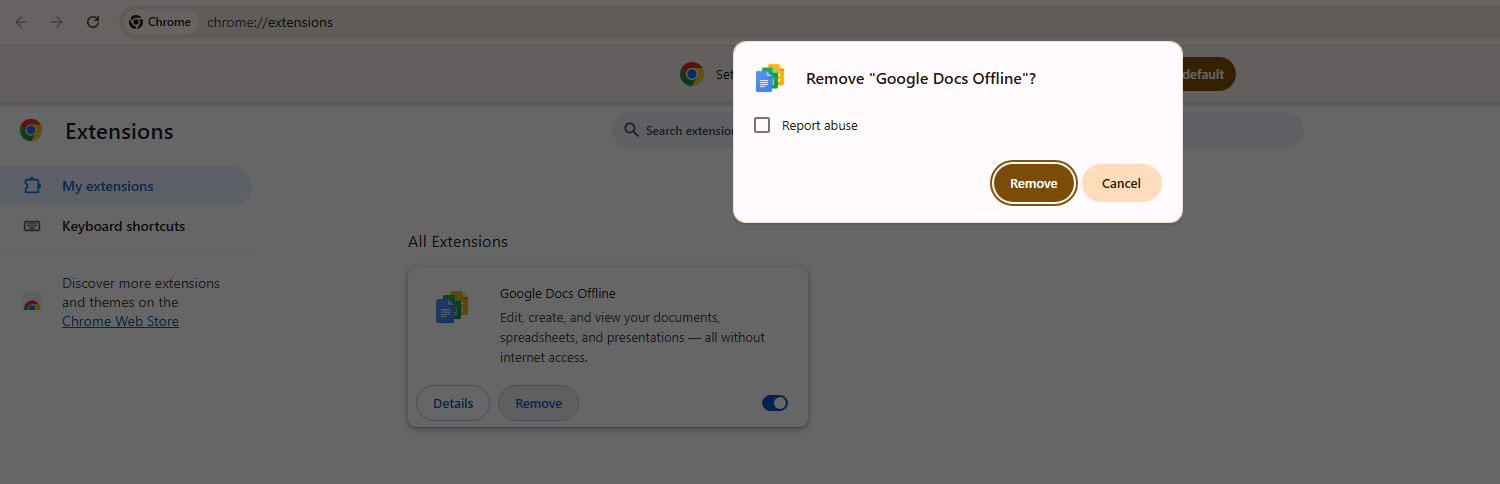
Harmful extensions are one of the most common ways viruses enters your Chrome browser. Some extensions may appear legitimate but are designed to track your browsing activity, inject ads, or compromise your security by stealing passwords or redirecting your searches.
To check for and remove harmful extensions:
- Open Chrome and click the three-dot menu
- Go to More tools > Extensions to view all installed extensions
- Review each extension carefully — if you do not recognize it or did not intentionally install it, remove it
- Click Remove on any extension that looks suspicious or unwanted
- Visit the Web Store only to download extensions from verified, trusted developers
Chrome also has a feature that warns you about extensions that may pose a security risk. If you receive a notification or warning about a specific extension, disable it immediately and investigate further before re-enabling it.
For maximum protection, only install extensions from the Web Store and check user reviews and developer information before adding any extension to your browser. Legitimate extensions from reputable developers are much less likely to harm your device.
5. Enhanced Safe Browsing
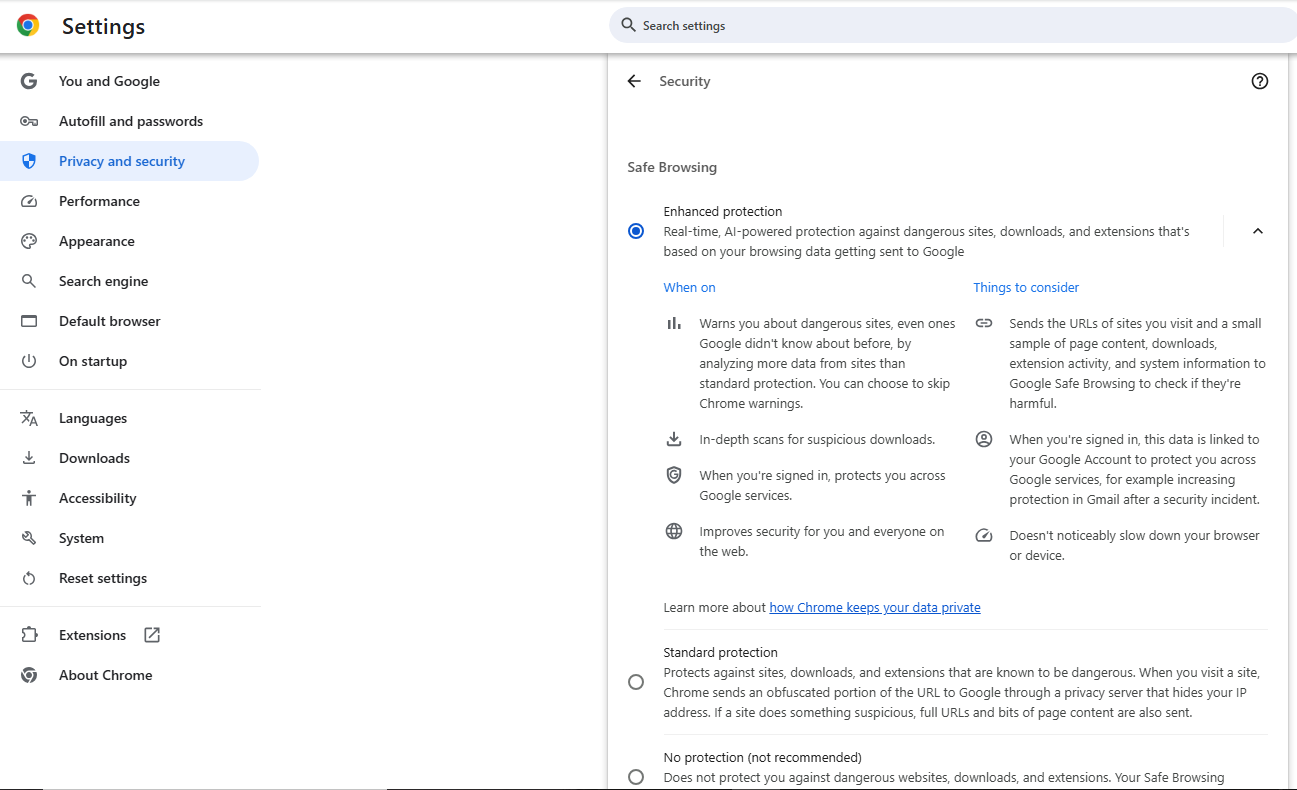
Chrome’s Enhanced Safe Browsing mode offers stronger, faster protection against dangerous sites, phishing attacks, and virus downloads compared to the standard Safe Browsing setting. When you enable this mode, Chrome shares more data with Google to improve real-time threat detection and provide safer browsing overall.
How to enable Enhanced Protection:
- Open Chrome and go to Settings > Privacy and security > Security
- Under Safe Browsing, select Enhanced Protection
- Chrome will now provide more proactive warnings about risky websites, unsafe downloads, and browser extension risks
With Enhanced Protection enabled, Chrome can:
- Detect dangerous sites and phishing attacks faster than the standard mode
- Warn you before you download a file that has been flagged as unsafe
- Help protect your Google account by monitoring for security breaches
- Provide better protection against scams, malicious programs, and password theft
If you are concerned about sharing additional data with Google, you can instead use the Standard protection mode, which still provides solid built-in security without the same level of data sharing. For most users, however, enabling Enhanced protection offers a meaningfully safer browsing experience with minimal practical impact on privacy.
Common Browser Security Threats to Watch Out For
Understanding the types of threats you may encounter while browsing the web can help you stay vigilant and take appropriate steps to protect yourself. Here are the most common browser security threats:
- Phishing Attacks: Phishing is when a malicious website or email impersonates a legitimate service to trick you into entering your password, credit card details, or other sensitive information. Chrome’s Safe Browsing feature helps detect phishing sites, but always double-check URLs before entering personal data.
- Malware Downloads: Some websites attempt to infect your device by prompting you to download a file that contains malware. Chrome warns you about unsafe downloads, but you should always verify a source before downloading anything, especially executable files.
- Adware: Adware is unwanted software that displays excessive ads or redirects your browser to sponsored websites. It often enters your browser through deceptive extension installations or bundled software downloads. Running an antivirus scan can help detect and remove adware.
- Scams and Fake Warnings: Some malicious websites display fake virus warnings designed to scare you into calling a fraudulent support number or downloading harmful software. These are scams — Chrome’s built-in security features will not display alarming pop-ups asking you to call a phone number.
- Browser Hijackers: Browser hijackers are a type of malware that changes your browser settings — such as your homepage and default search engine — without your permission. They often arrive through infected extension installations or bundled software and can be removed by resetting your browser settings.
- Unsafe Attachments: Opening an attachment from an untrusted email or website can introduce malware to your device. Always use antivirus software to scan attachments before opening them, especially if they arrive unexpectedly.
- Credential Compromise: Some malicious sites or extensions are designed to capture your passwords or compromise your Google account. Use strong, unique passwords, enable two-factor authentication, and consider a password manager for added security.
Are Google Chrome’s Security Features Enough?
Google Chrome is a secure browser, but it is not a substitute for antivirus software.
Its built-in Safe Browsing feature does a solid job of warning you about dangerous sites, phishing attacks, and unsafe downloads before they reach your device, but it cannot scan your system for existing infections, and the Chrome Cleanup Tool that once handled that job was discontinued in 2023.
To keep your browser and device protected, the most effective approach combines a few simple habits: reset Chrome settings if something seems off, clear your browsing data regularly, use a VPN, only install extensions from trusted sources, and keep a reliable antivirus program running in the background.

Enabling Enhanced Safe Browsing in Chrome’s security settings adds another layer of real-time protection at minimal cost to your privacy.
Frequently Asked Questions
Does Google have free antivirus?
Google does not offer a standalone free antivirus software product. However, Chrome’s built-in Safe Browsing feature provides a degree of free protection against dangerous sites, phishing, and virus downloads.
Can I trust Chrome extensions?
Not all Chrome extensions are safe. While the Chrome Web Store has policies to detect and remove harmful extensions, some malicious or unwanted software can still slip through.
How to clear Chrome virus?
To clear a Chrome virus, follow these steps: reset your browser settings to their original defaults, clear your browsing data and cache, disable and remove any harmful or unrecognized extensions, and run a full system scan with a reputable antivirus.
Can your Chrome Browser get infected with malware?
No software or platform is entirely immune to security threats, and Chrome Browser is no exception.
Does Chrome Browser have an antivirus?
Chrome does not include a full antivirus in the traditional sense, but it does offer built-in security features through Safe Browsing that detect and warn you about unsafe websites, phishing attacks, and harmful downloads.